Explore and use the Wayground Official Library to find expertly crafted items and assessments aligned with your school’s standards and curriculum. Here’s how to navigate and make the most of it:
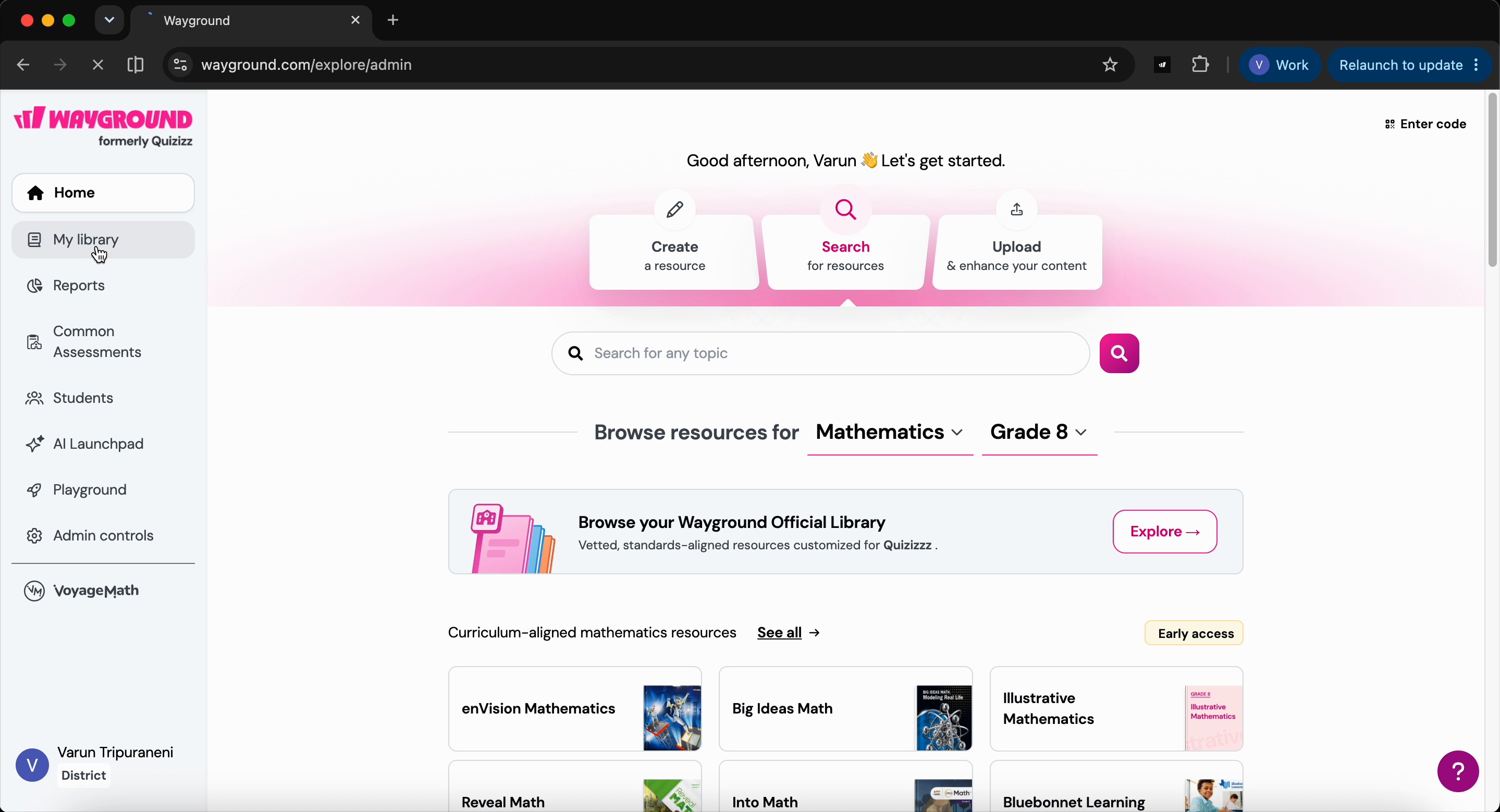
Step 1: Open the Wayground Official Library from My library.
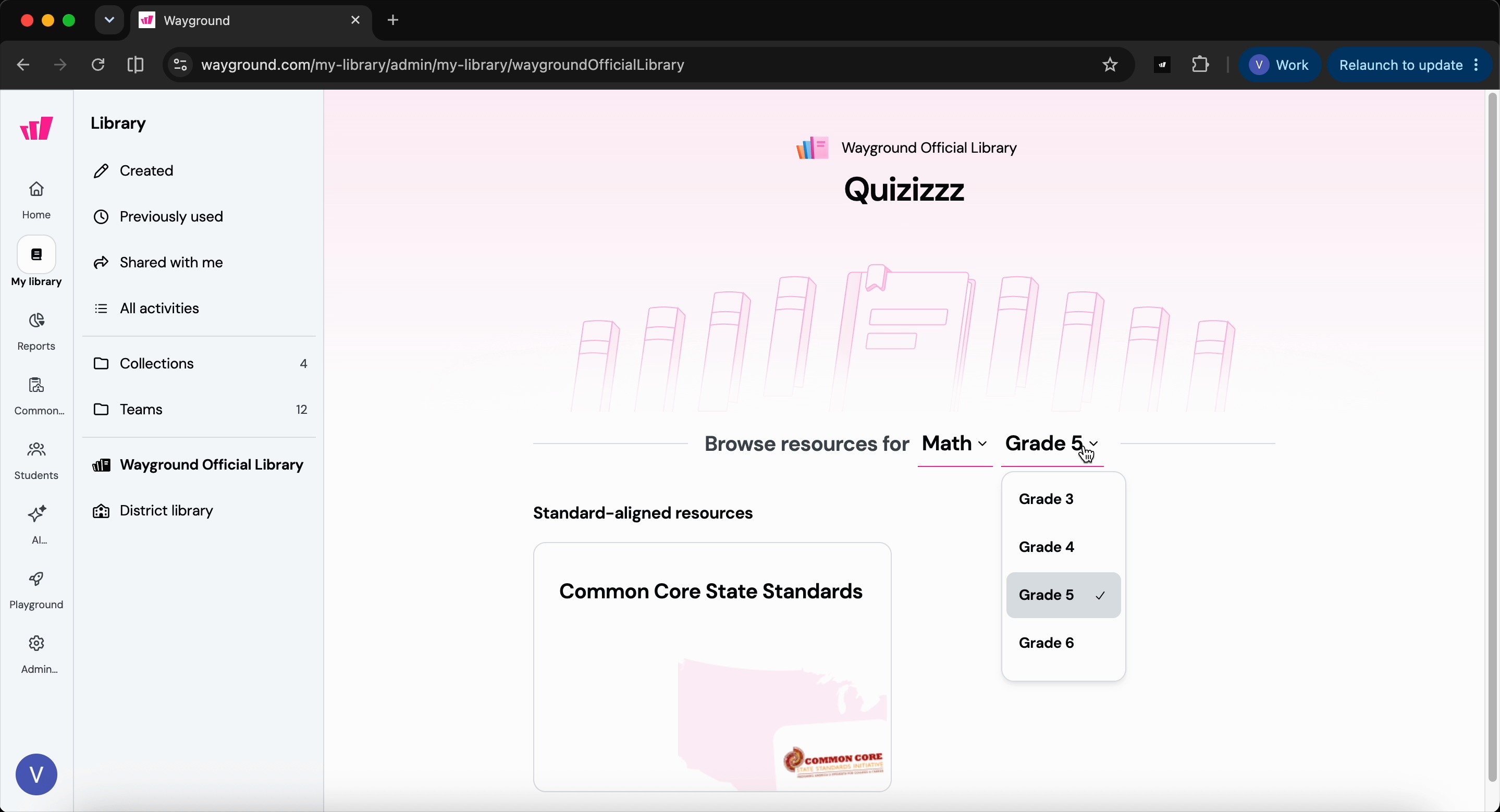
Step 2: Select the subject and grade you teach.
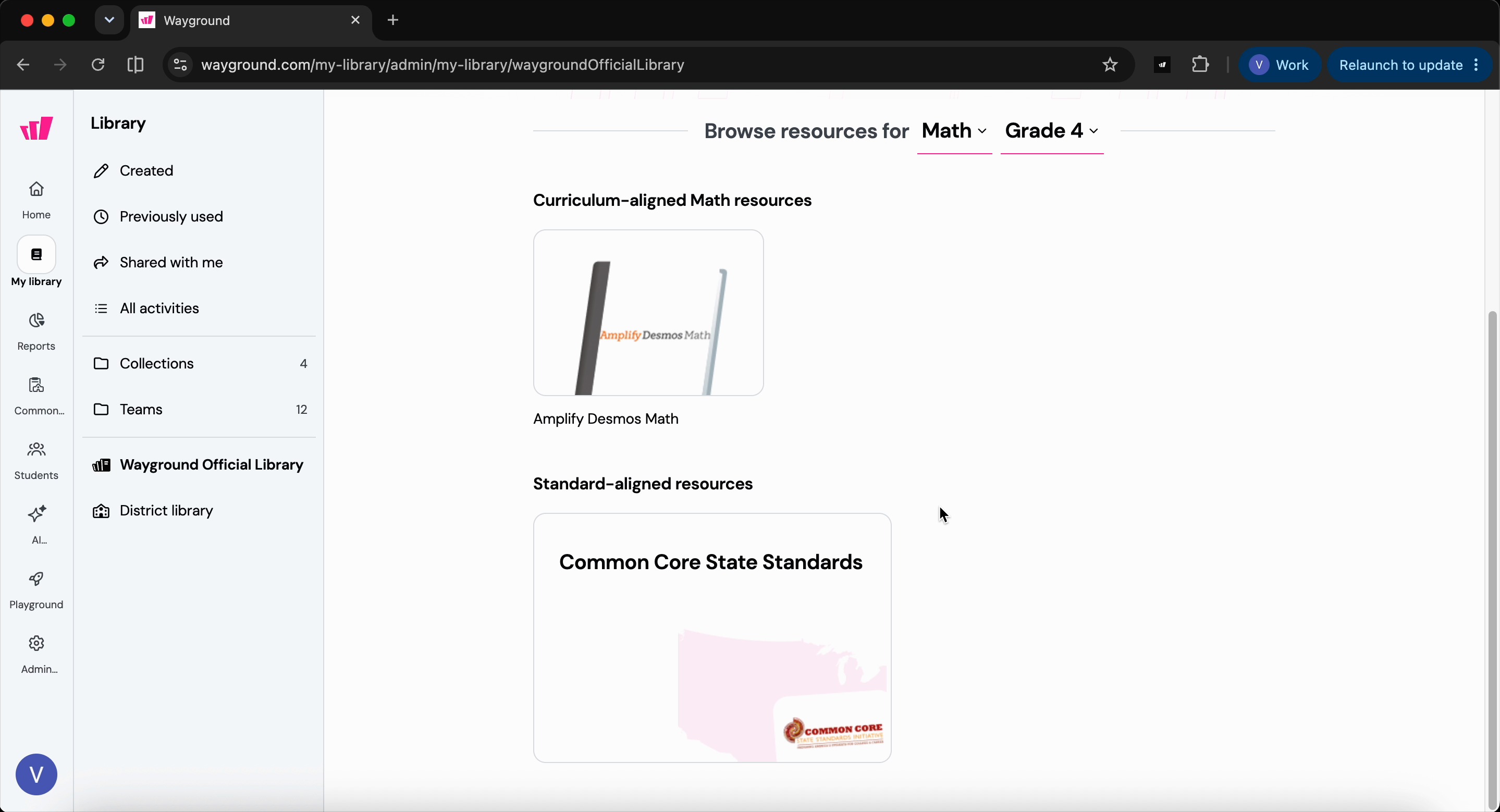
Step 3: Browse your curriculum or scroll to your state standards, as set by your administrator.
Step 4: Choose your grade level and a domain, like geometry.
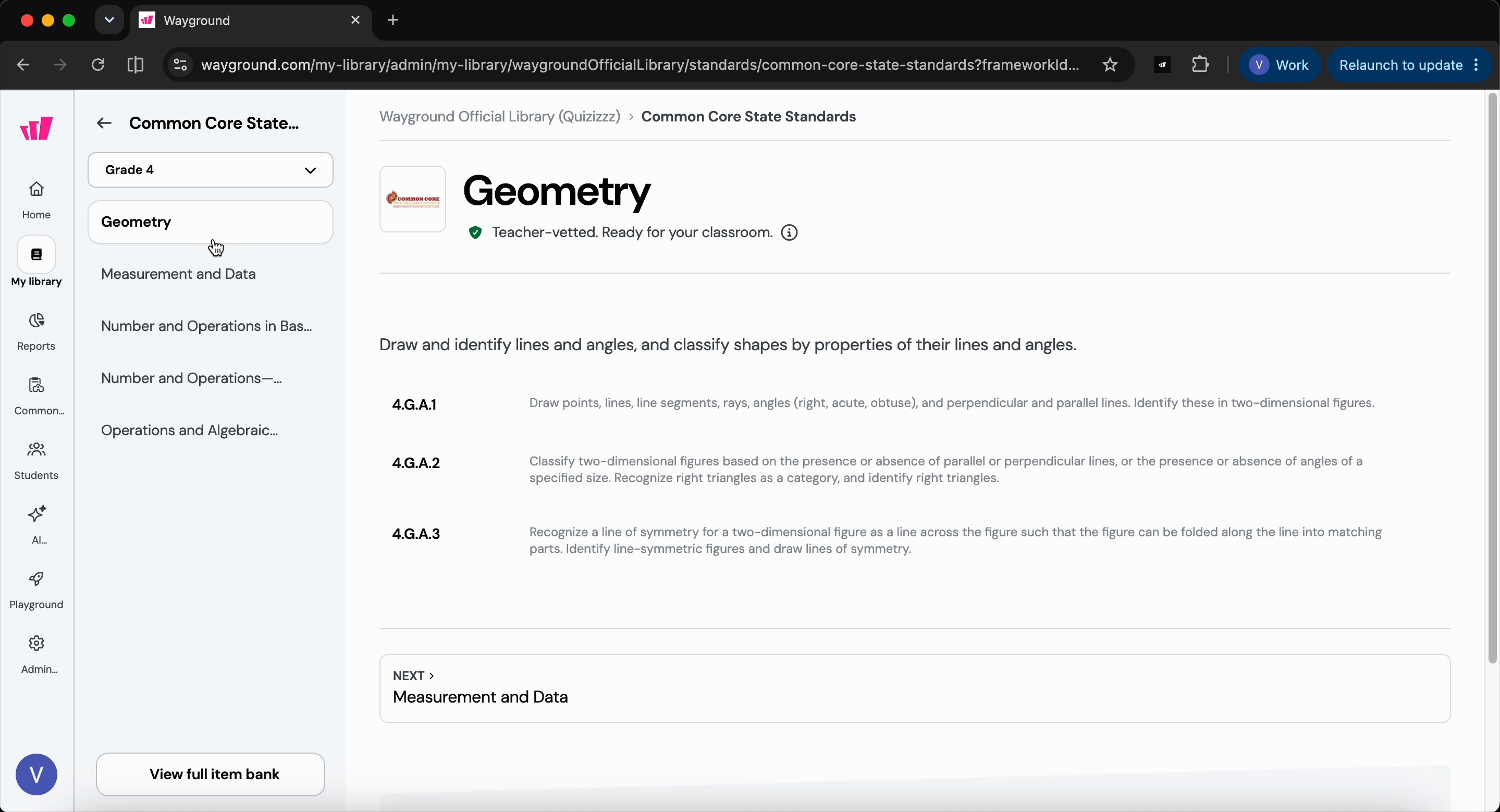
Step 5: View the standards grouped under their cluster headings, shown with full text for clarity.
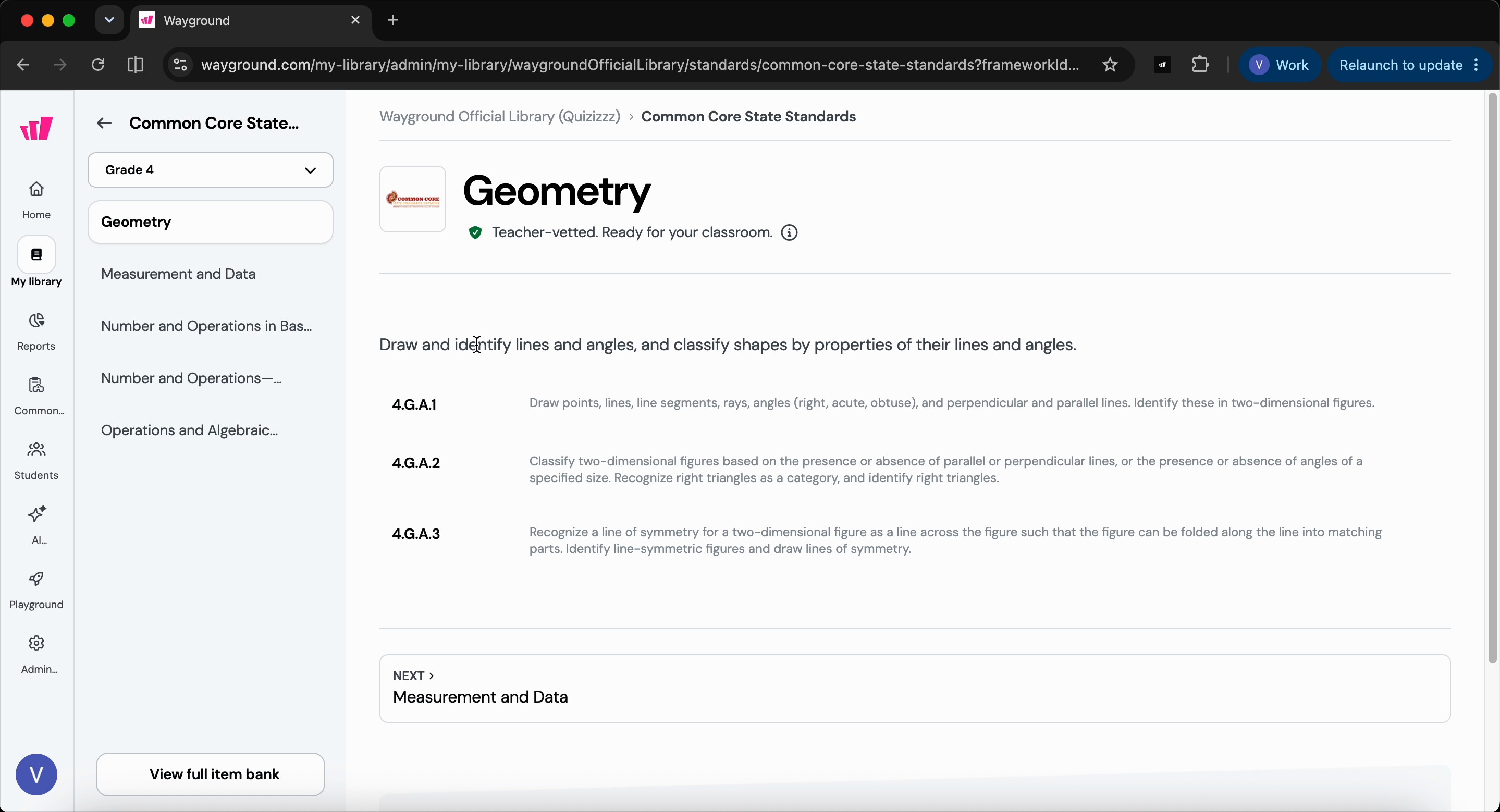
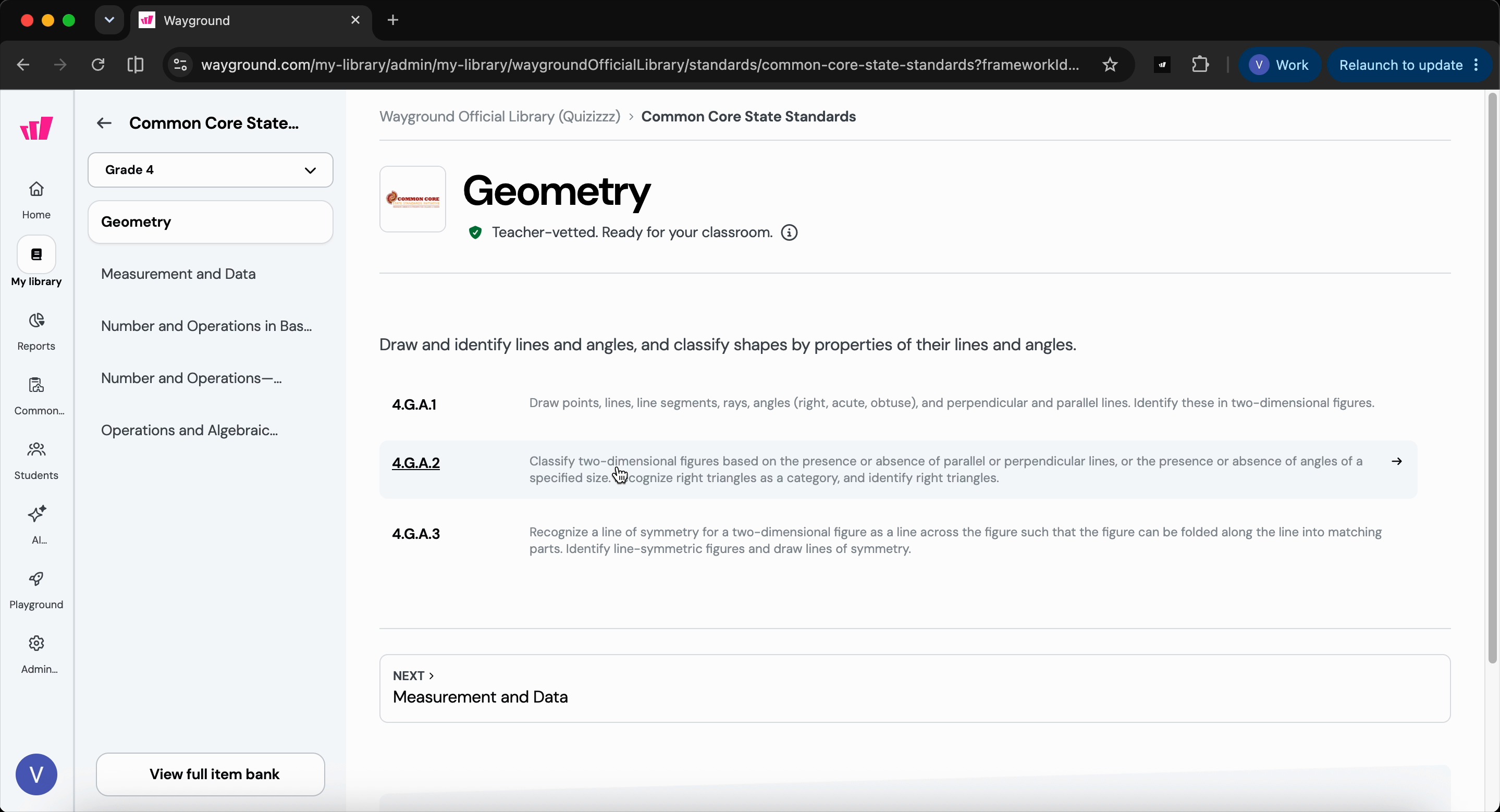
Step 6: Open a specific standard to see its details.
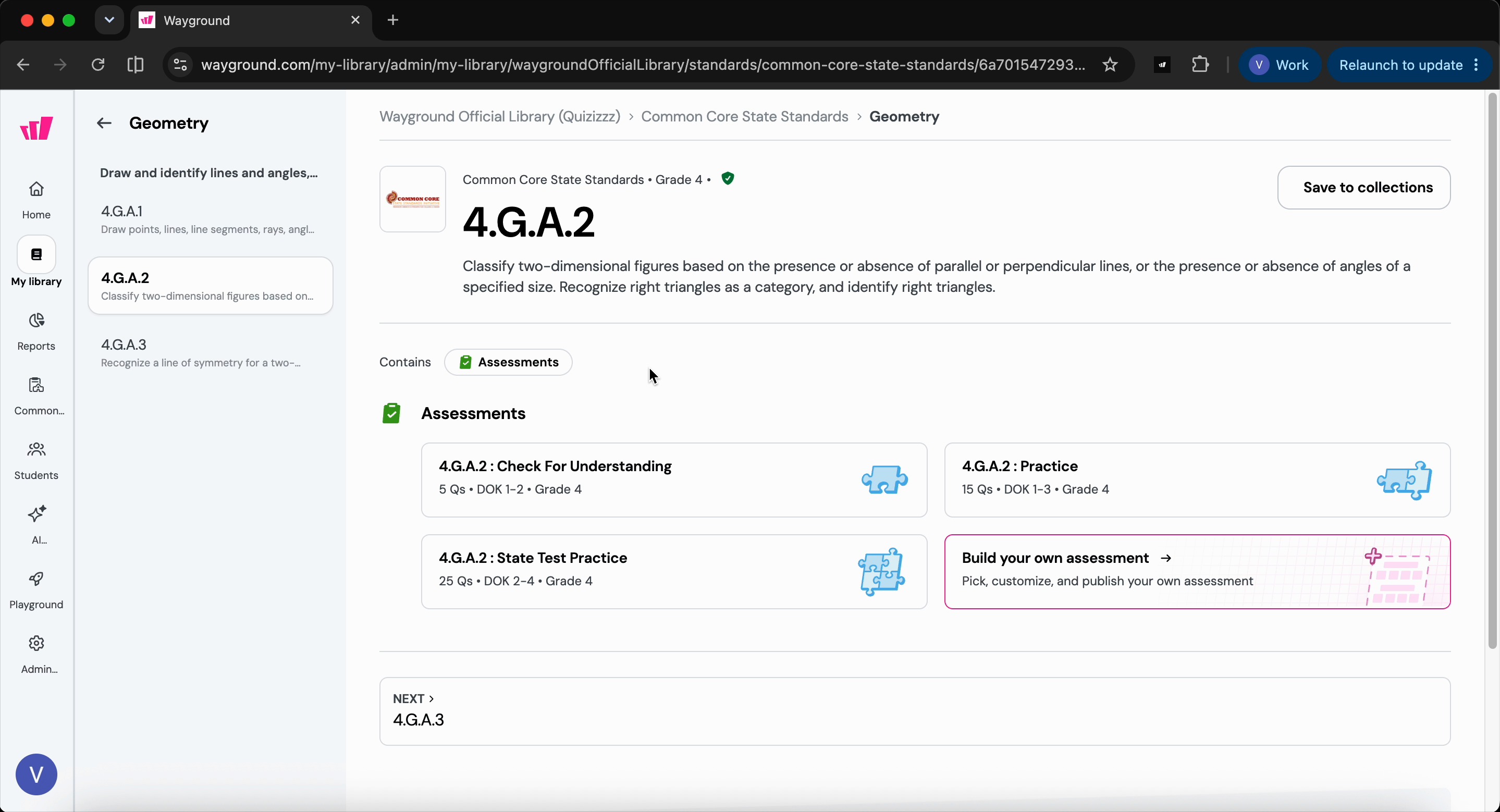
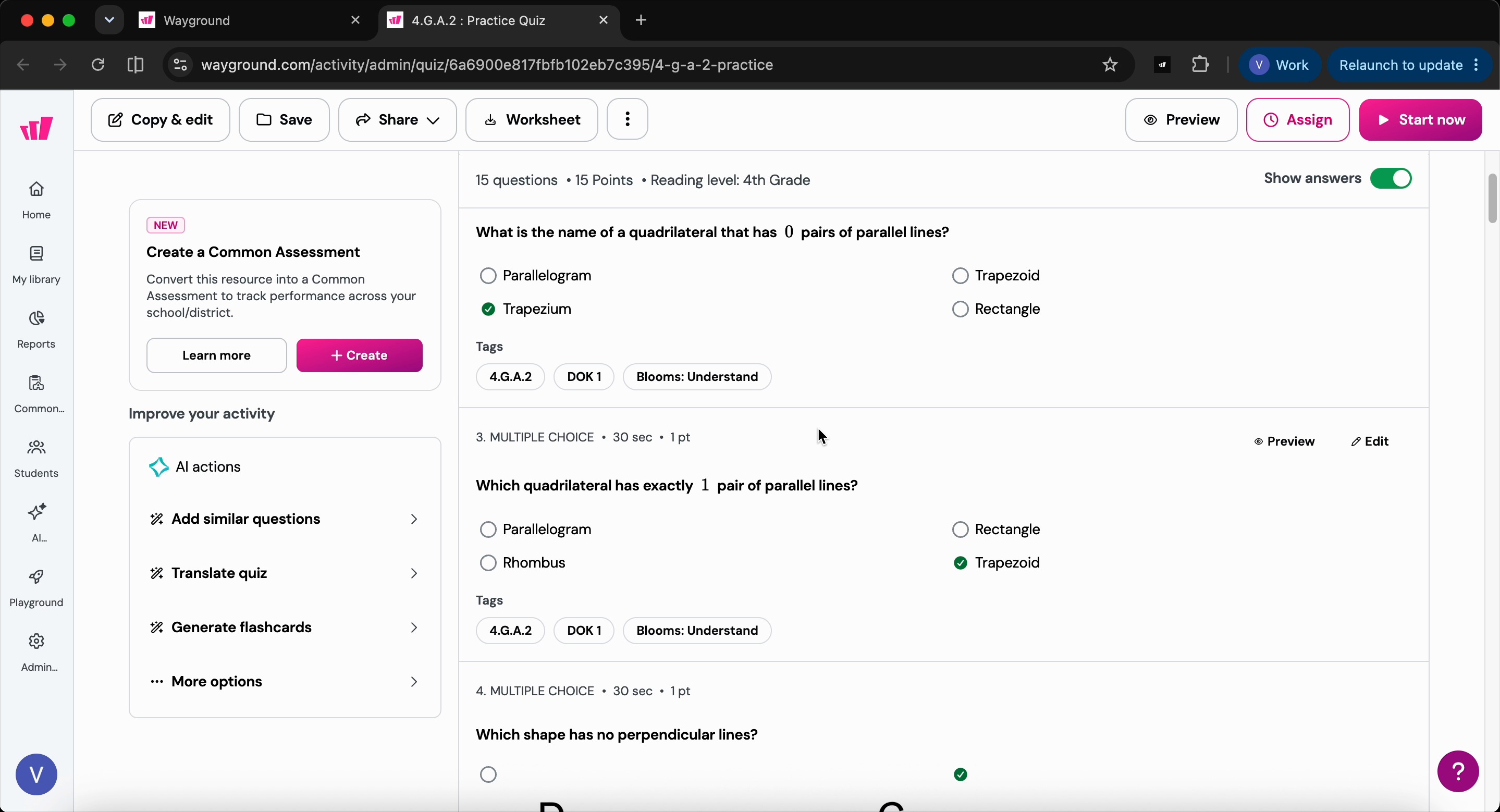
Step 7: Review the three pre-built assessments for that standard. Select one to open in the assessment editor.
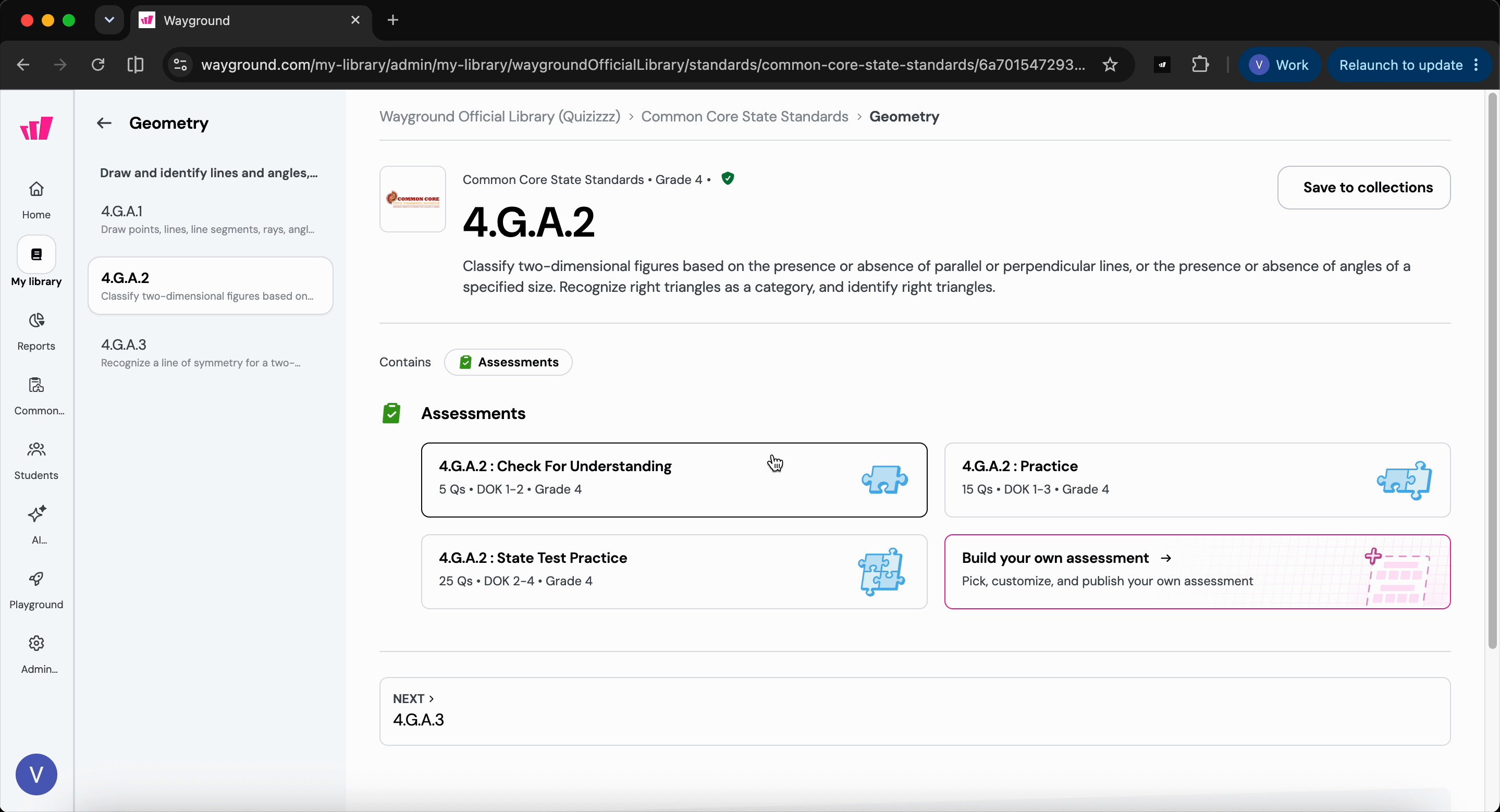
Step 8: In the assessment editor, use the assessment as-is or modify questions to suit your needs.
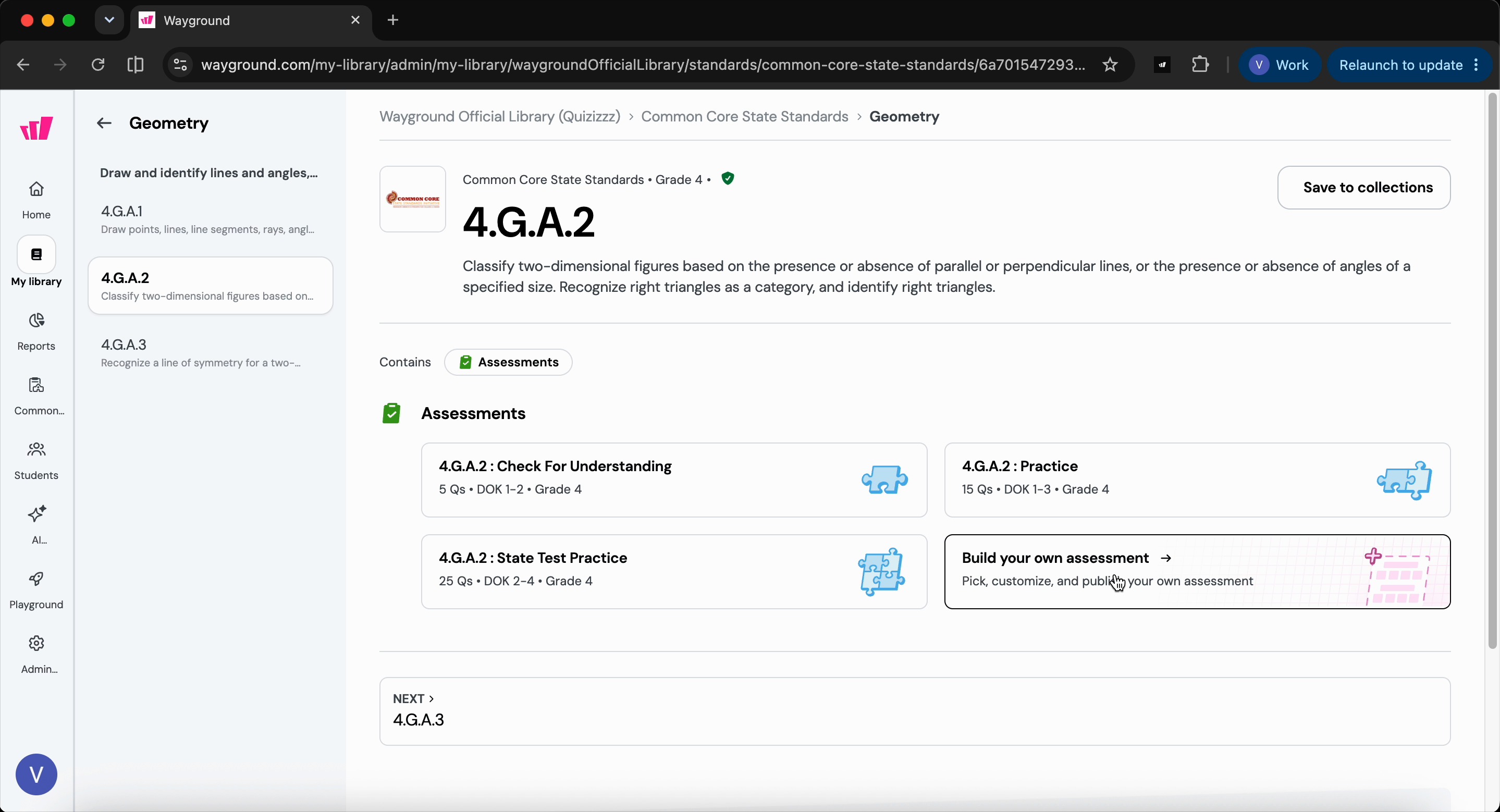
Step 9: If the existing assessments don’t fit, choose to build your own. Get access to every question available for that standard, with filters to help you narrow them down.
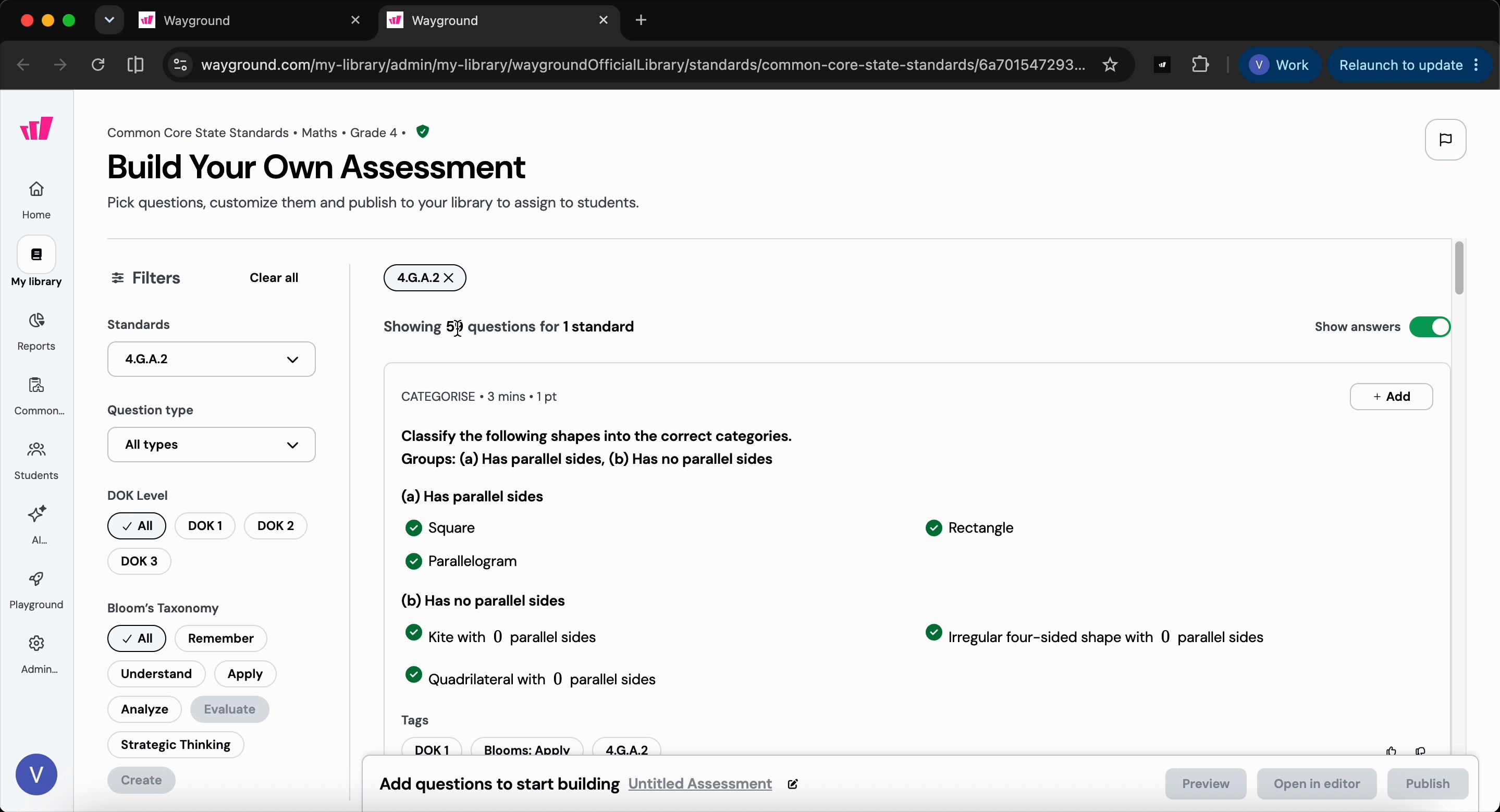
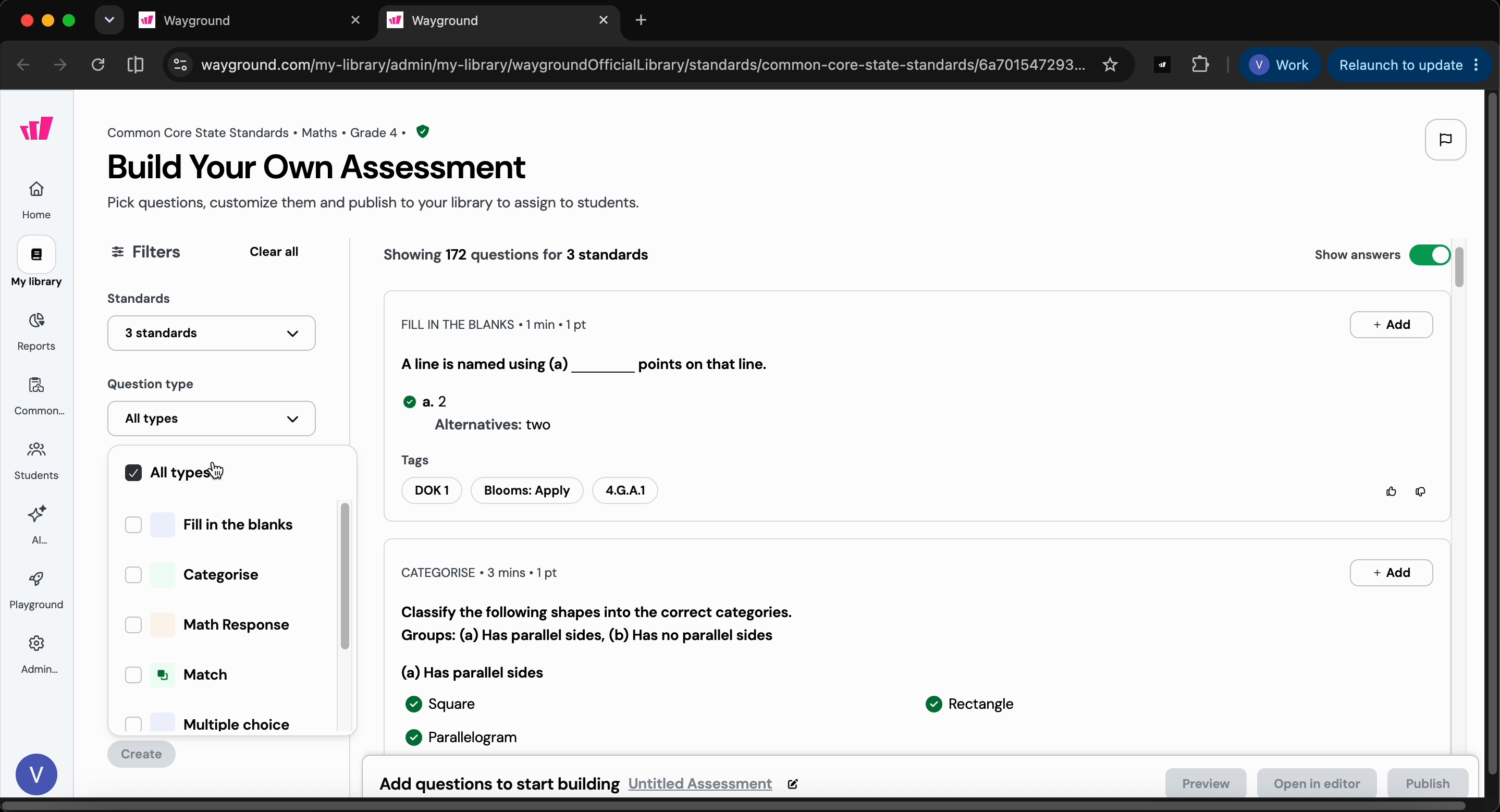
Step 10: Add questions by filtering by type, DOK level, Bloom’s level, or by adding standards, and trim your list as needed.
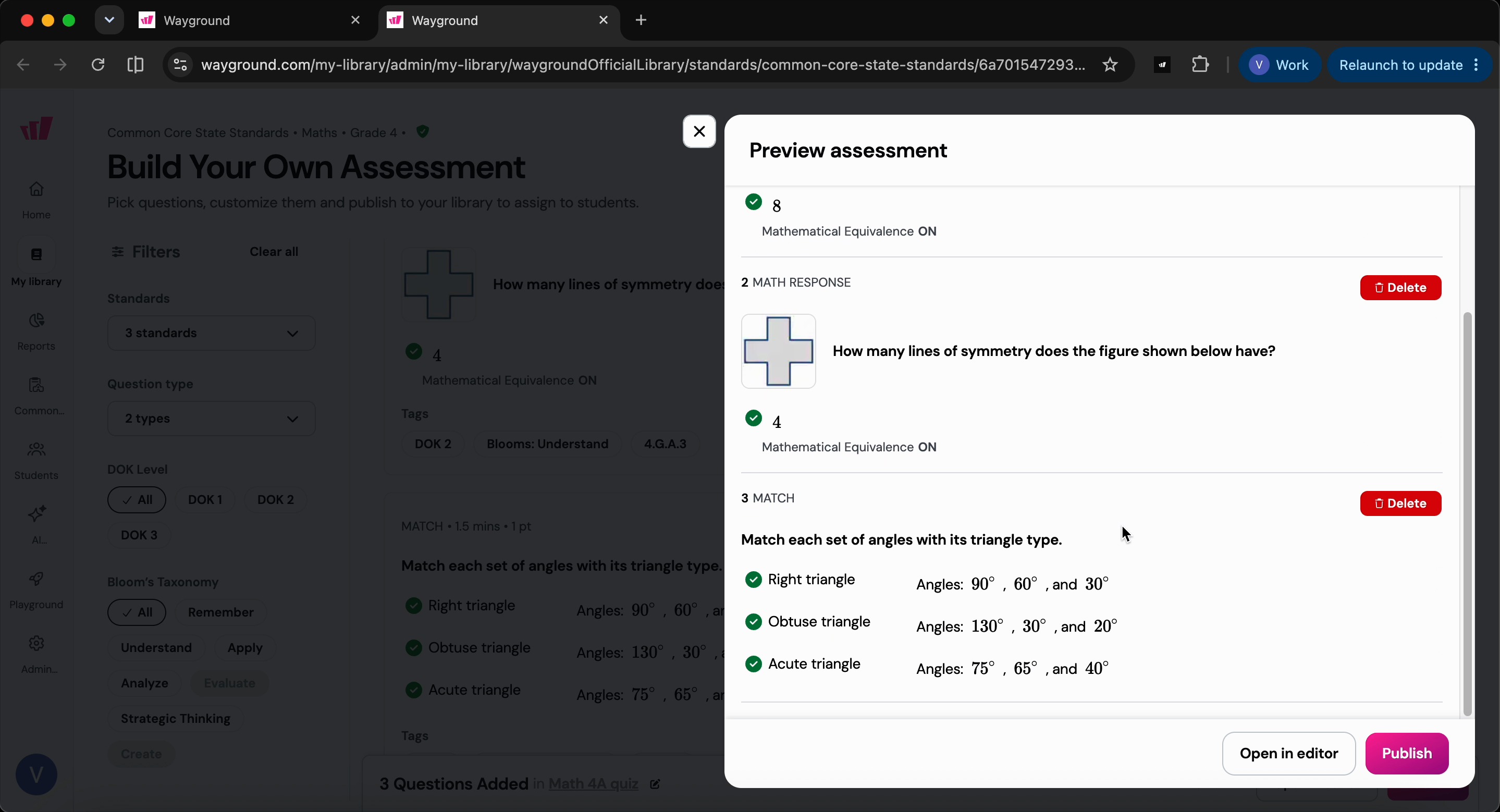
Step 11: Name your assessment and preview your added questions.
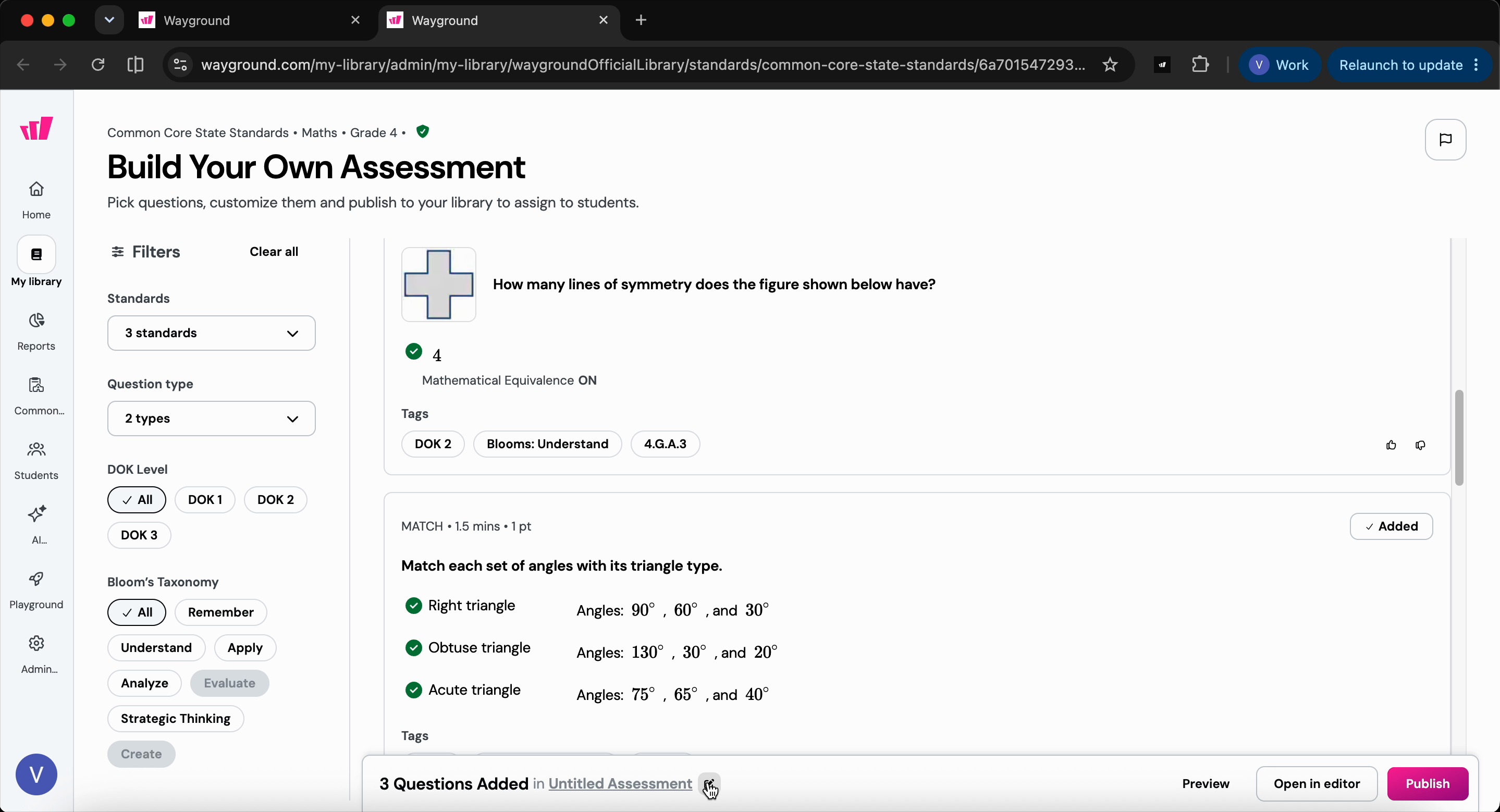
Step 12: When satisfied, publish your assessment.
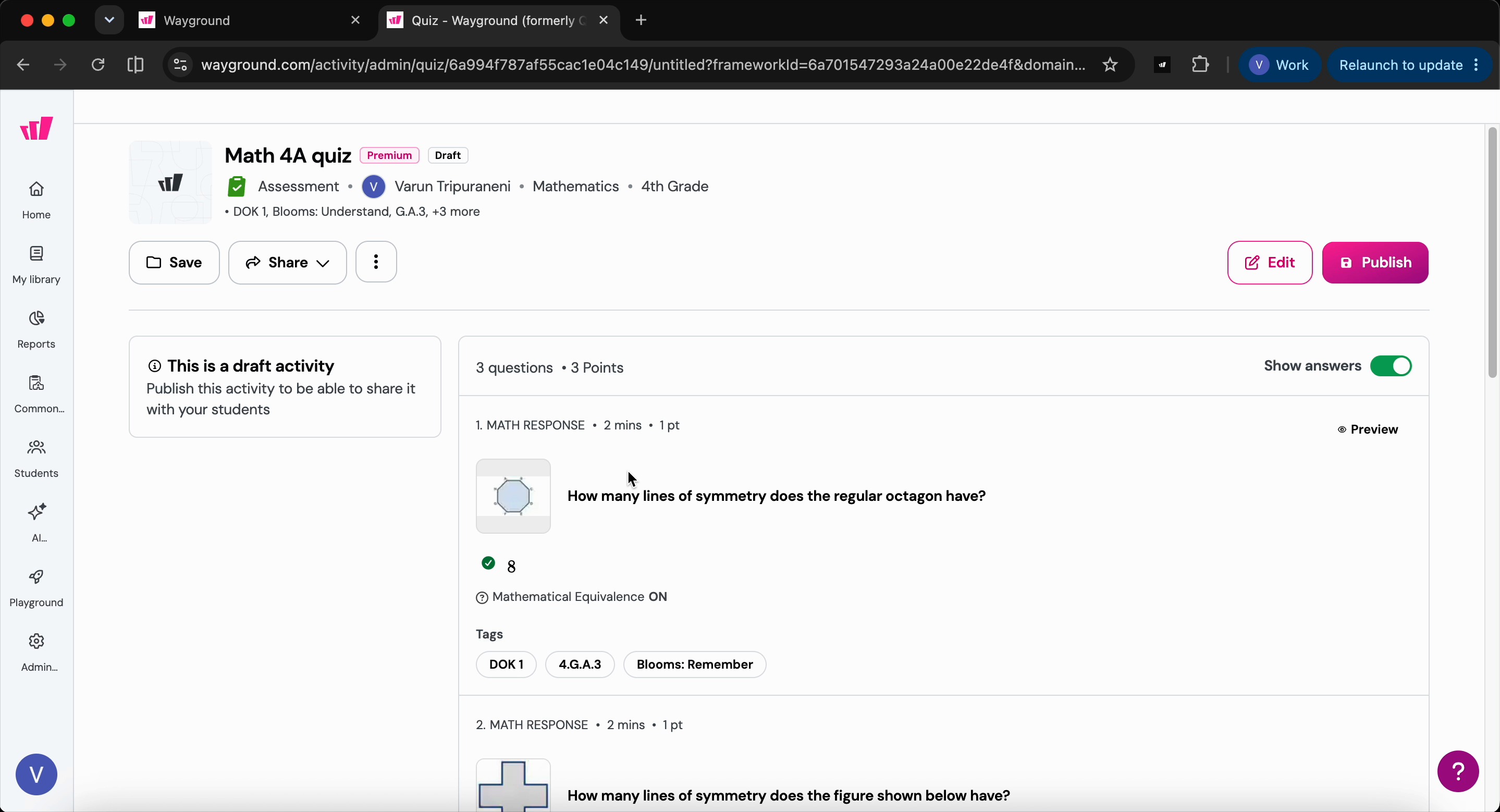
Step 13: Your published quiz appears in My Library, ready to assign or host for your class when you’re ready.
With the Official Library, you can quickly build or adapt rigorous, standards-aligned assessments—making classroom checks for understanding faster, easier, and more meaningful.
Was this article helpful?
That’s Great!
Thank you for your feedback
Sorry! We couldn't be helpful
Thank you for your feedback
Feedback sent
We appreciate your effort and will try to fix the article