TABLE OF CONTENTS
- What is Quests?
- How an assigned activity becomes a Quest
- What Quests means for teachers
- How students access and use Quests
- Common questions
With Quests, the activities a teacher assigns become a way for students to earn coins. The aim is to give students a reason to start, practice, and replay their assigned work.
What is Quests?
Quests works with activities a teacher assigns as homework. When students play and finish those activities, they earn coins to claim and spend on Wayground. The more they play and replay, the more coins they earn.
How an assigned activity becomes a Quest
An assigned activity becomes a Quest once three or more students join it. Students then earn coins to claim every time they play it.
What Quests means for teachers
Teachers do not need to set anything up. Quests works on its own with the activities a teacher assigns.
Teachers stay in charge of assigning, grading, and reviewing activities
Students can play a Quest from the activity itself or from their Quest page
Quests is a student feature: it rewards students for completing assigned activities and replaying them for higher accuracy, without changing how teachers manage those activities.
Students can only replay a Quest (and earn the replay coins) if the teacher allows multiple attempts for the activity.
How students access and use Quests
This section explains what students see and do when they use Quests. Teachers can use it to understand the student experience and answer student questions.
Finding the Quest page
Students can open the Quest page from several places:
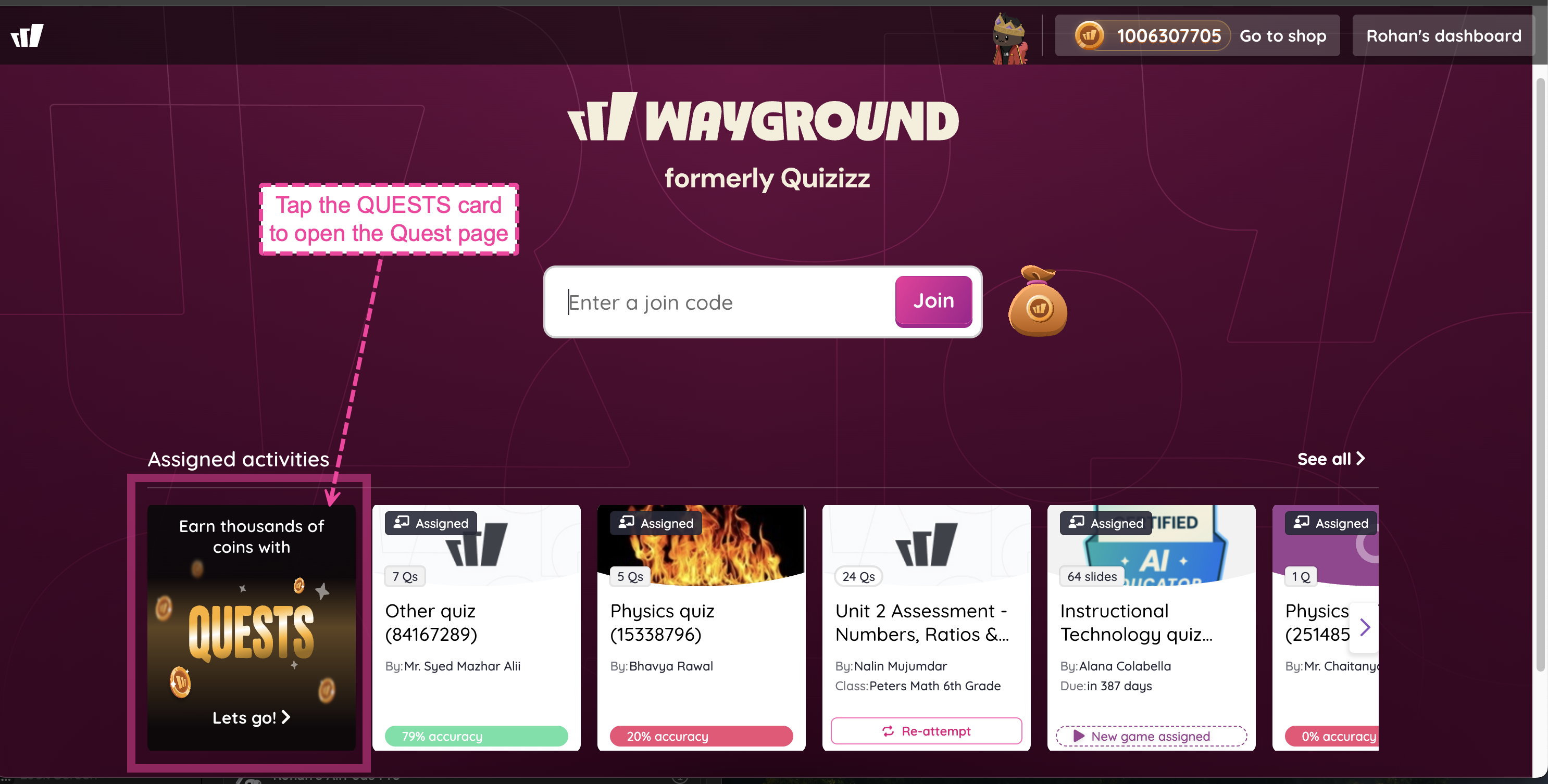
The Join page: look for QUESTS at the start of the Assigned activities section
The student dashboard: look for QUESTS at the start of the Recent Activity section
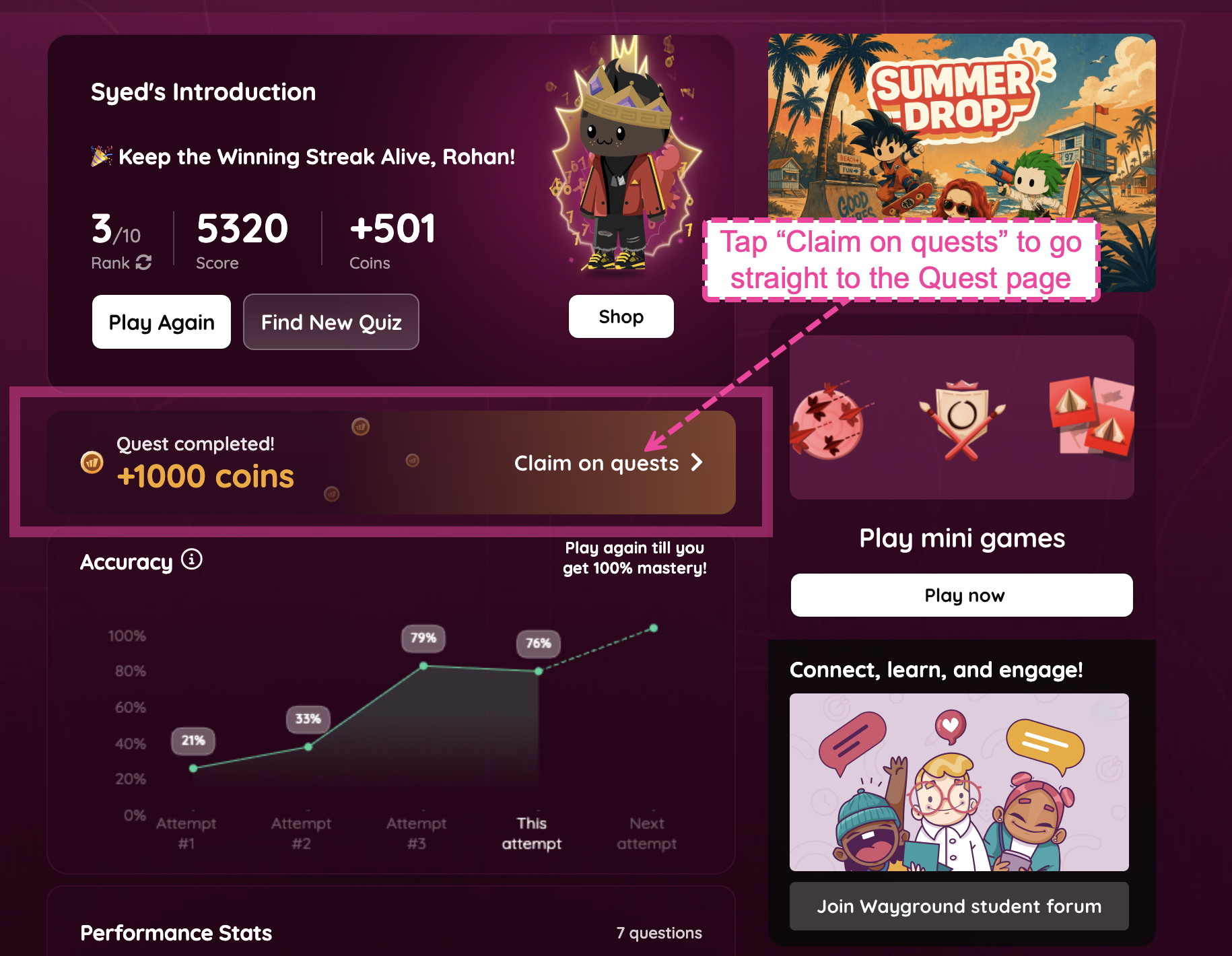
The summary screen: after finishing an assigned activity, a student can tap Claim on quests
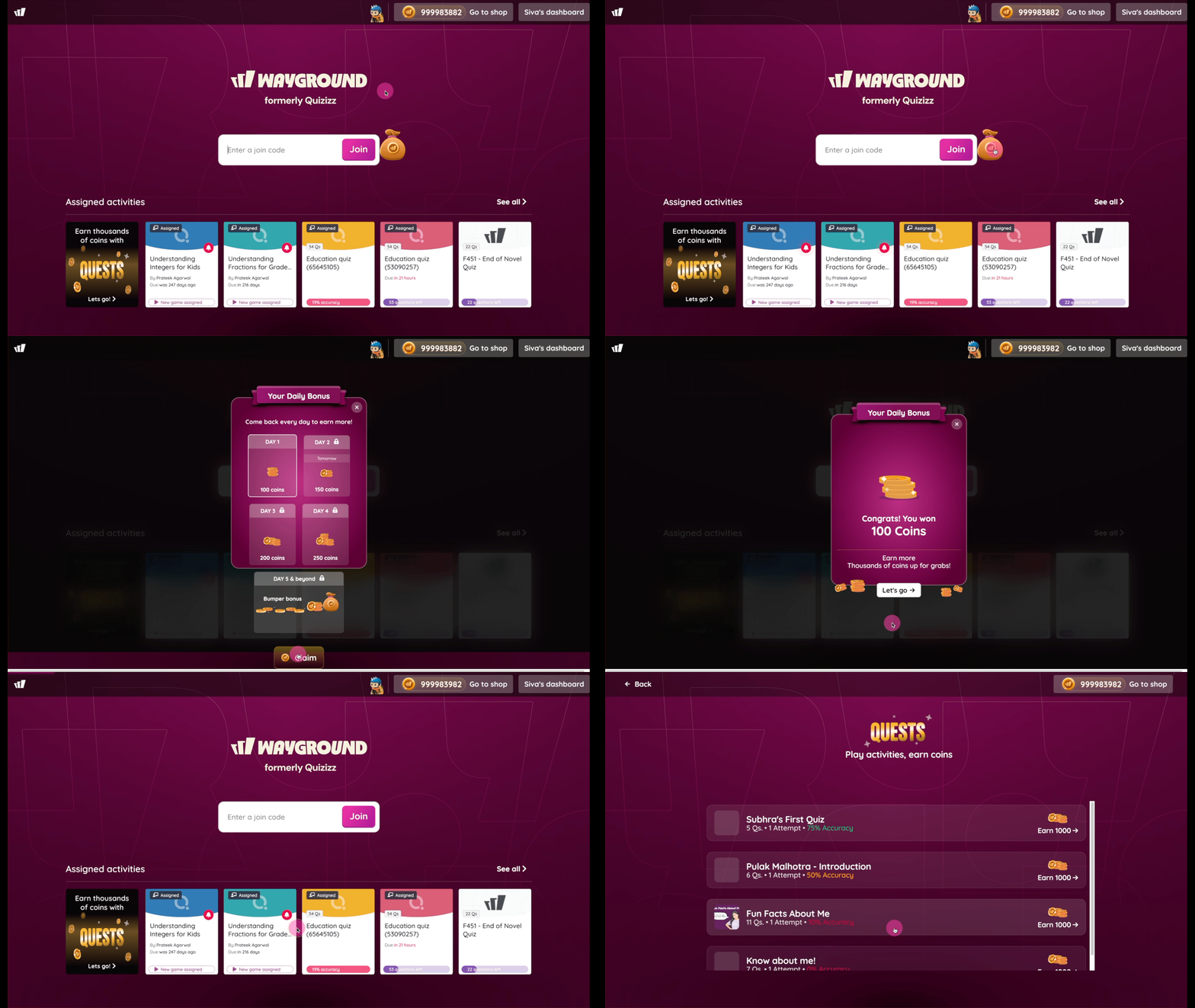
The Daily Bonus: after claiming their daily coins, a student can tap Let’s go
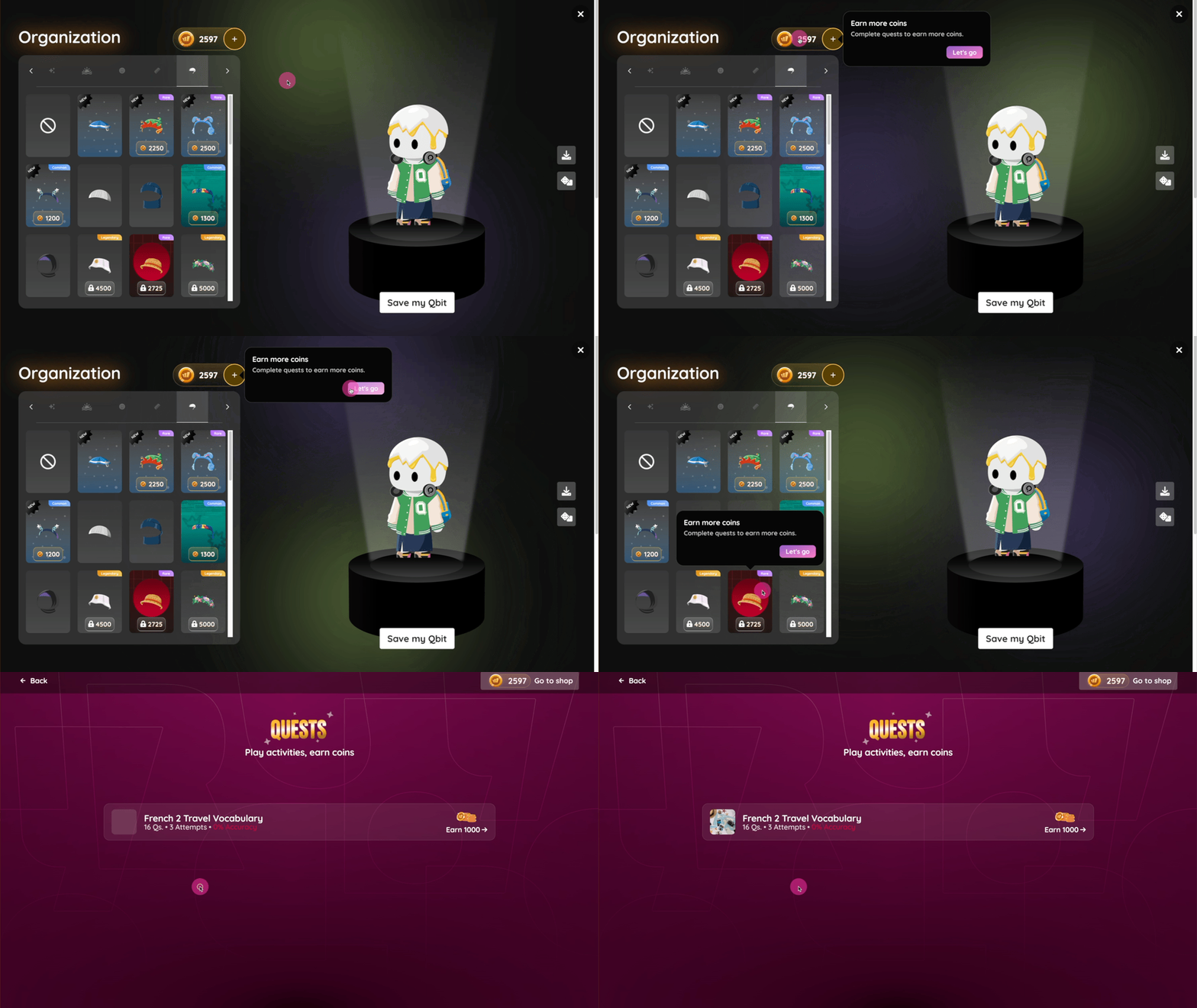
When a student is low on coins: for example, in the Avatar Shop, if an item costs more coins than they have, they can tap Let’s go on the ‘Earn more coins’ message
Earning and claiming coins
- The student plays a Quest.
- When the student finishes, their coins are ready to claim.
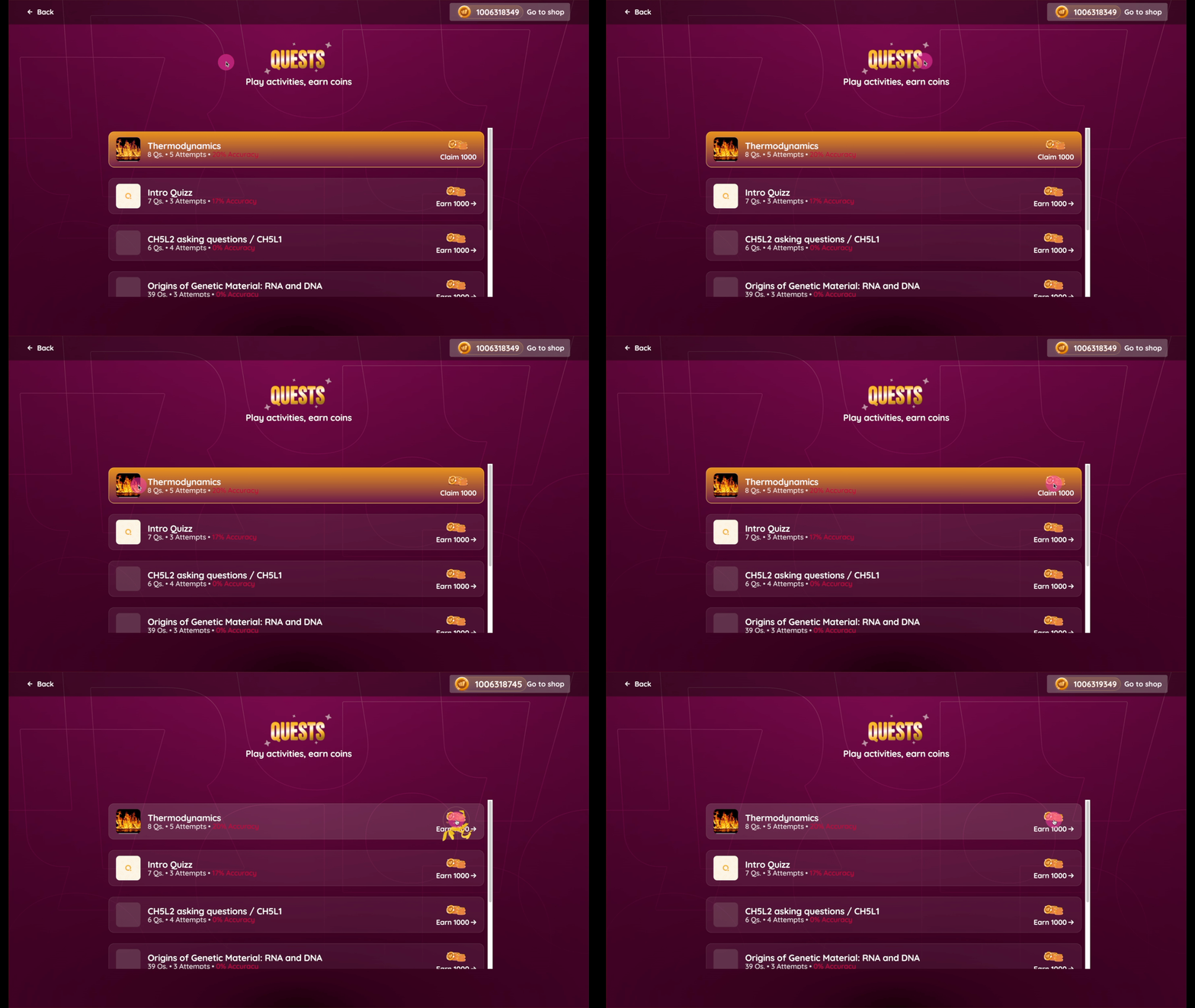
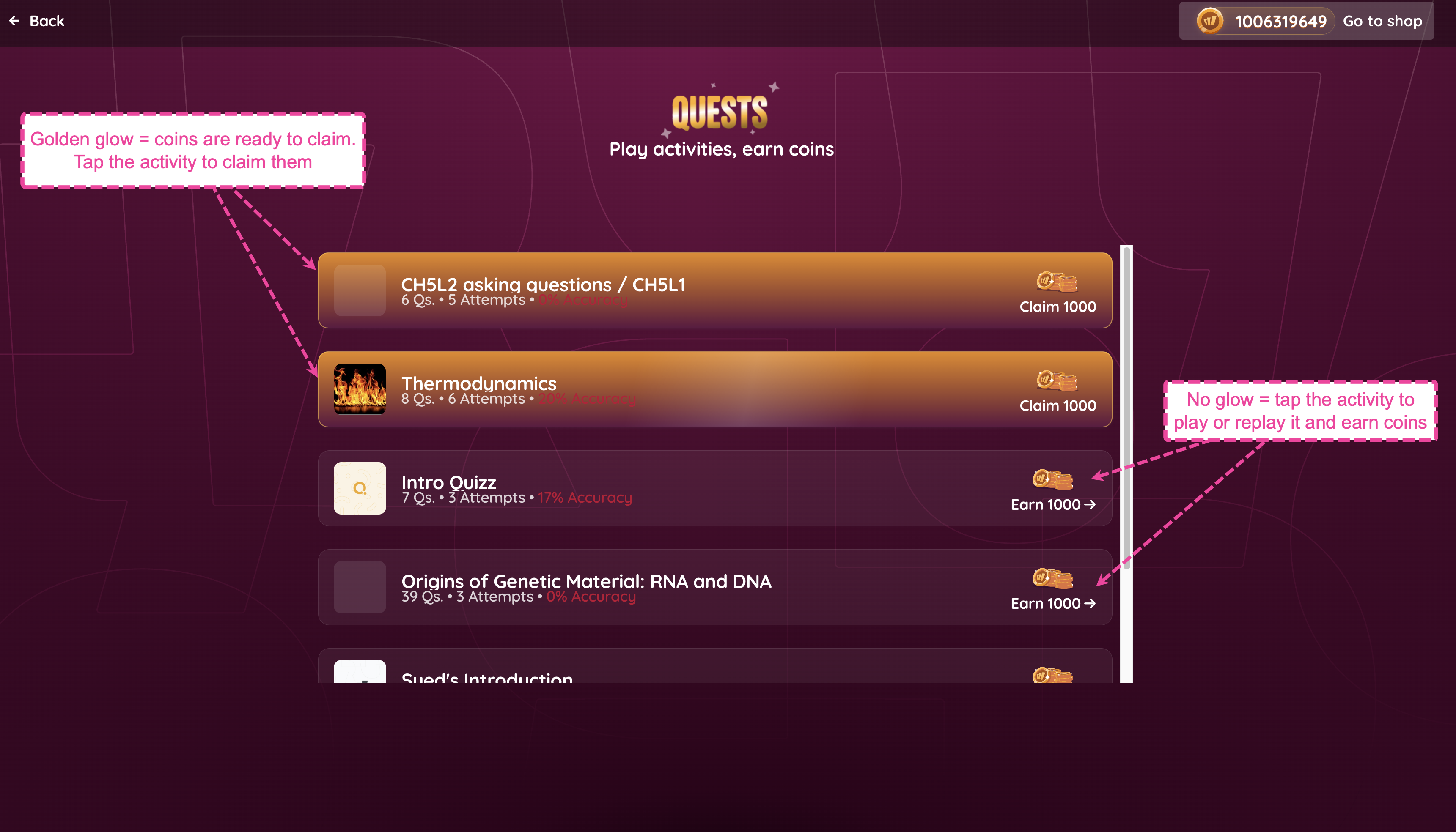
- On the Quest page, the Quest shows a golden glow and a claim button with the coin amount, such as Claim 1000. The glow means coins are waiting.
- The student taps the glowing Quest to claim the coins. Confetti appears, and the coins go into their balance right away.
- After the student claims, the golden glow goes away and the Quest looks normal again.
The Quest page lists all of a student’s Quests, newest first. Quests without a golden glow show a button with the coins available to earn, such as Earn 1000. Tapping it plays or replays the Quest to earn more coins.
How many coins a student earns depends on whether it is their first play or a replay:
The first time a student plays a Quest: 500 coins to claim
Every replay after that: 1,000 coins to claim
Spending coins
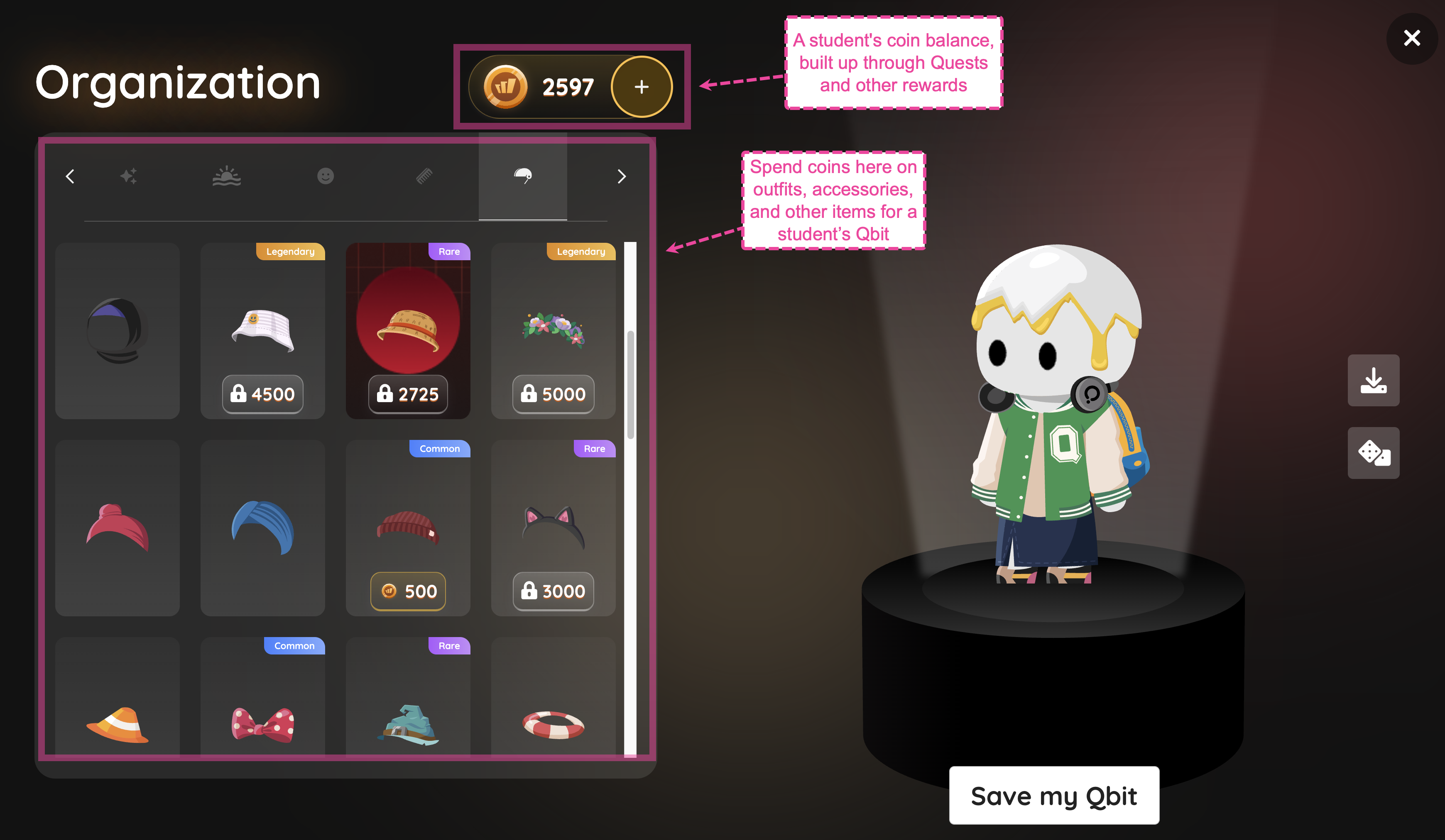
Claimed coins go into a student’s coin balance, shown at the top of the Quest page and around Wayground. Students spend coins in the Avatar Shop on outfits, accessories, and more for their Qbit, and in other places on Wayground.
Common questions
How can a student tell if they have coins to claim?
On the Quest page, finished Quests with coins waiting have a golden glow and a claim button. A Quest completed! message also appears on the summary screen right after the student finishes.
Can a student play a Quest again?
Yes, as long as the teacher has allowed multiple attempts for the activity. A student can replay it from the activity itself or from the Quest page, and each replay is worth 1,000 coins.
What if a student does not have enough coins for something?
They can play more Quests to earn more. When a student is low on coins, a message appears, and tapping Let’s go opens the Quest page.
Was this article helpful?
That’s Great!
Thank you for your feedback
Sorry! We couldn't be helpful
Thank you for your feedback
Feedback sent
We appreciate your effort and will try to fix the article