TABLE OF CONTENTS
- What the add-on does
- Before you start
- For administrators: install for your school or district
- Install the add-on
- Assign a resource from Google Classroom
- Assign from within Wayground
- What students see
- Review results and grades
- Troubleshooting and tips
- Need more help?
The Wayground (formerly Quizizz) add-on for Google Classroom lets you assign any Wayground resource straight from your class, with no class codes and no extra student logins. Students open the resource from the assignment, complete it in Wayground, and their results and scores sync back to Classroom for you to review.
What the add-on does
With the add-on connected, you can:
Assign from where you already work. Add a Wayground resource from inside a Google Classroom assignment, or push one from Wayground into a Classroom class.
Skip the class code. Students launch the resource directly from the assignment. They’re already signed in through Classroom, so there’s nothing extra to share.
Set the experience. Choose a mode (Practice, Accuracy, or Testing) and add Accommodations and other settings before you assign.
Keep grades in one place. Results and scores sync back to Classroom, so submissions and grades live alongside the rest of your class work.
Before you start
To use the Wayground Google Classroom integration, your school or district must have a Google Workspace for Education license.
Install the Wayground app from the Google Workspace Marketplace:
https://workspace.google.com/marketplace/app/wayground/58172892053An edition that includes Classroom add-ons: Education Plus or the Teaching and Learning add-on. Your administrator sets this. If you don’t see Add-ons in an assignment, your edition may not include it.
A Wayground account. Sign in to Wayground with the same Google account you use for Classroom.
The Wayground add-on installed for your account (see the next two sections). Depending on your school’s settings, your administrator may install it for you.
If the integration is not available after installation, please contact Wayground Support to have the feature enabled for your school or district.
For administrators: install for your school or district
Administrators can make the Wayground add-on available to teachers in two ways:
Install for your domain. From the Google Workspace Marketplace, install Wayground and choose the organizational units or groups that should have it. Teachers in those groups get the add-on ready in Classroom.
Allow individual installs. If your domain lets teachers add Marketplace apps, each teacher can install Wayground themselves using the steps in the next section.
Install the add-on
You only need to do this once.
Open the Google Workspace Marketplace and search for Wayground.
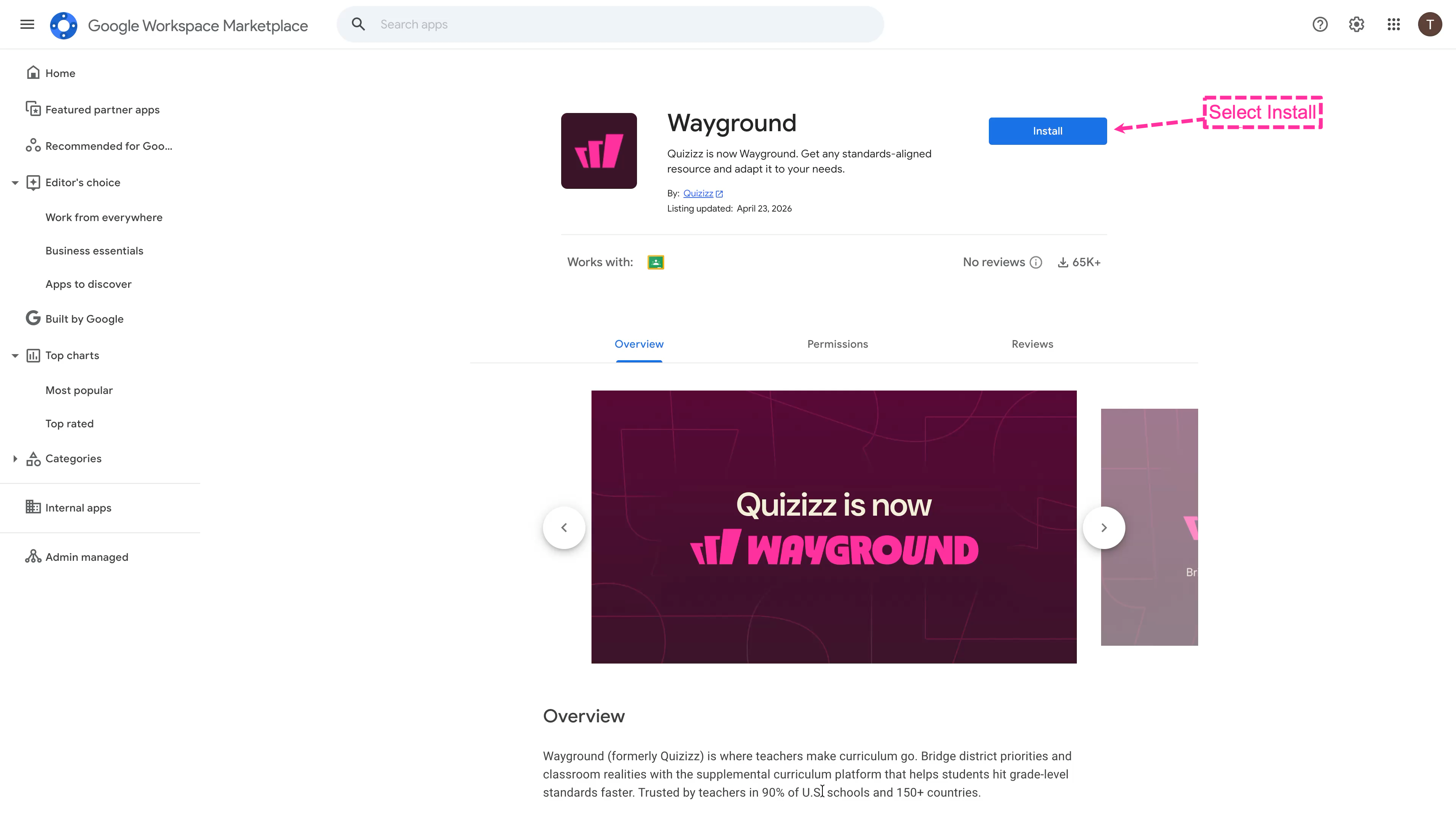
Find Wayground in Google Workspace Marketplace and select Install.
Open the Wayground listing and select Install.
Choose your Google account if prompted.
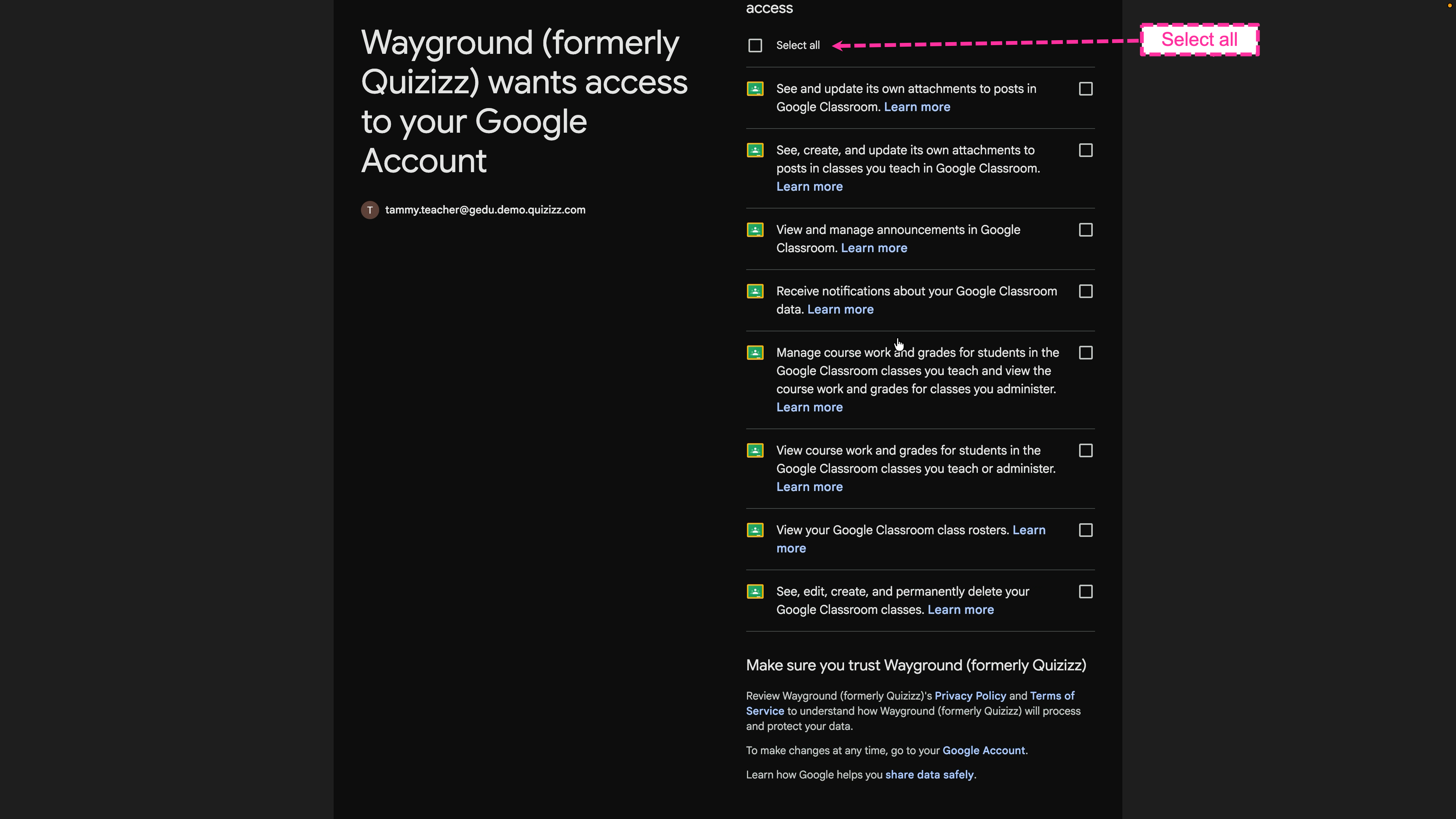
Select all, then continue to grant the Google Classroom permissions.
On the Sign in to Wayground screen, confirm your account details, then select Continue.
On the permissions screen, select Select all to grant the Google Classroom access the add-on needs, then select Continue.
These permissions let the add-on post assignments and sync grades in Google Classroom. After installation, you see a confirmation and the add-on is ready to use.
Assign a resource from Google Classroom
This is the most common way to assign.
Open your class in Google Classroom.
Go to Classwork › Create › Assignment.
In the assignment editor, open the Add-ons panel and select Wayground.
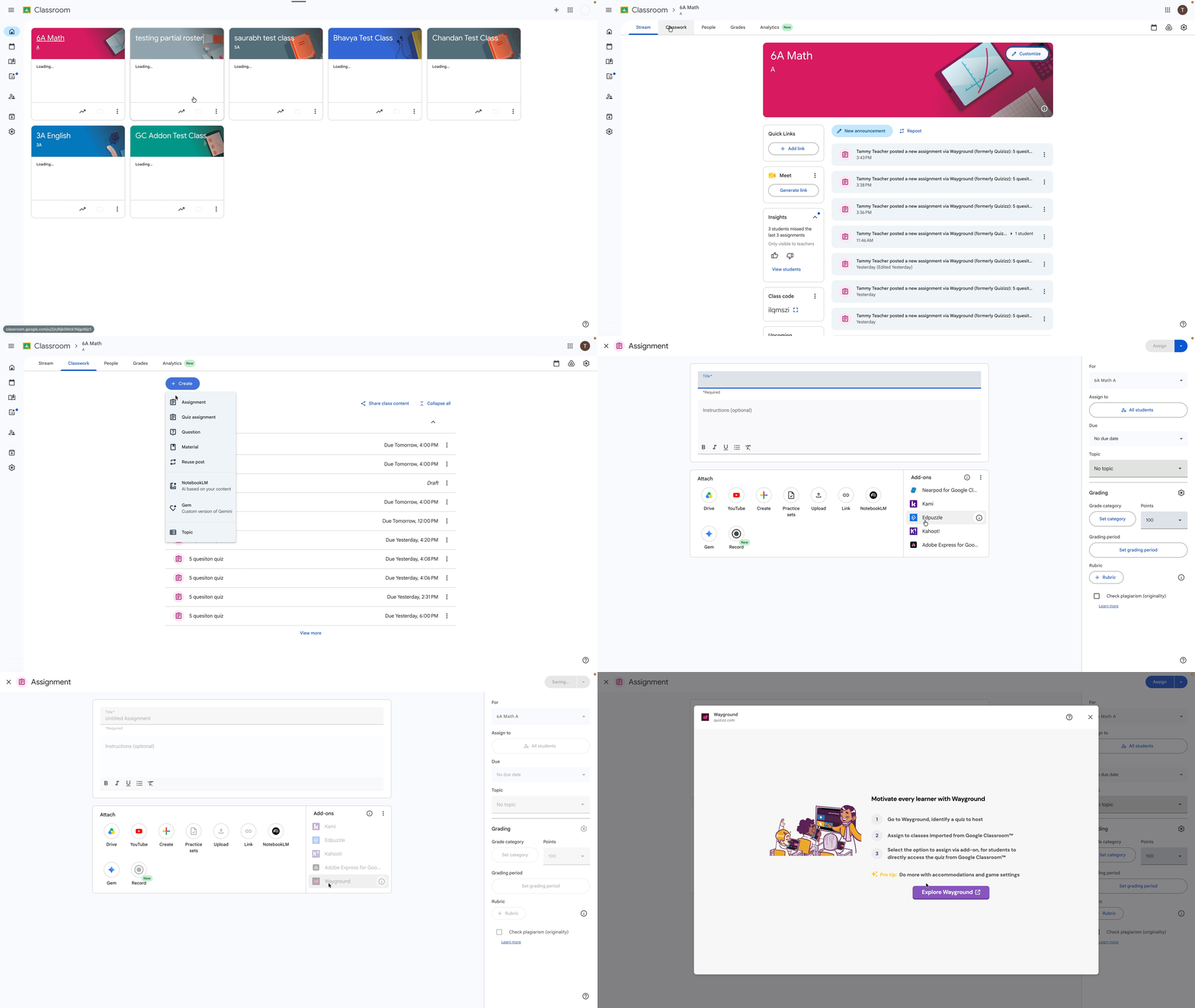
Create an assignment, open Add-ons, and choose Wayground.
The first time you use the add-on, select Continue with Google to connect your Wayground account, then confirm the Classroom permissions.
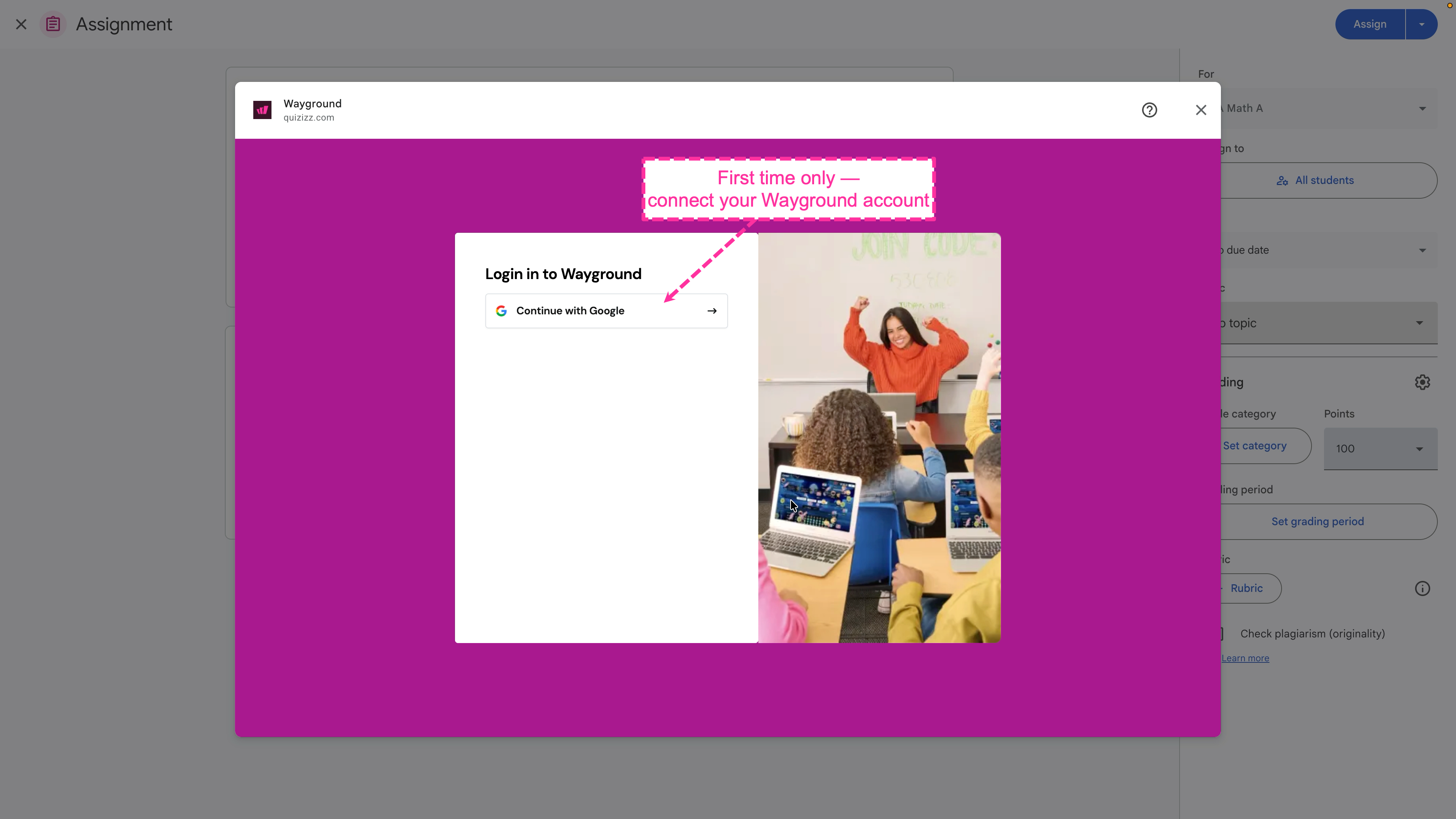
The first time, select Continue with Google to connect your Wayground account.
Browse your Wayground library and choose the resource you want to assign.
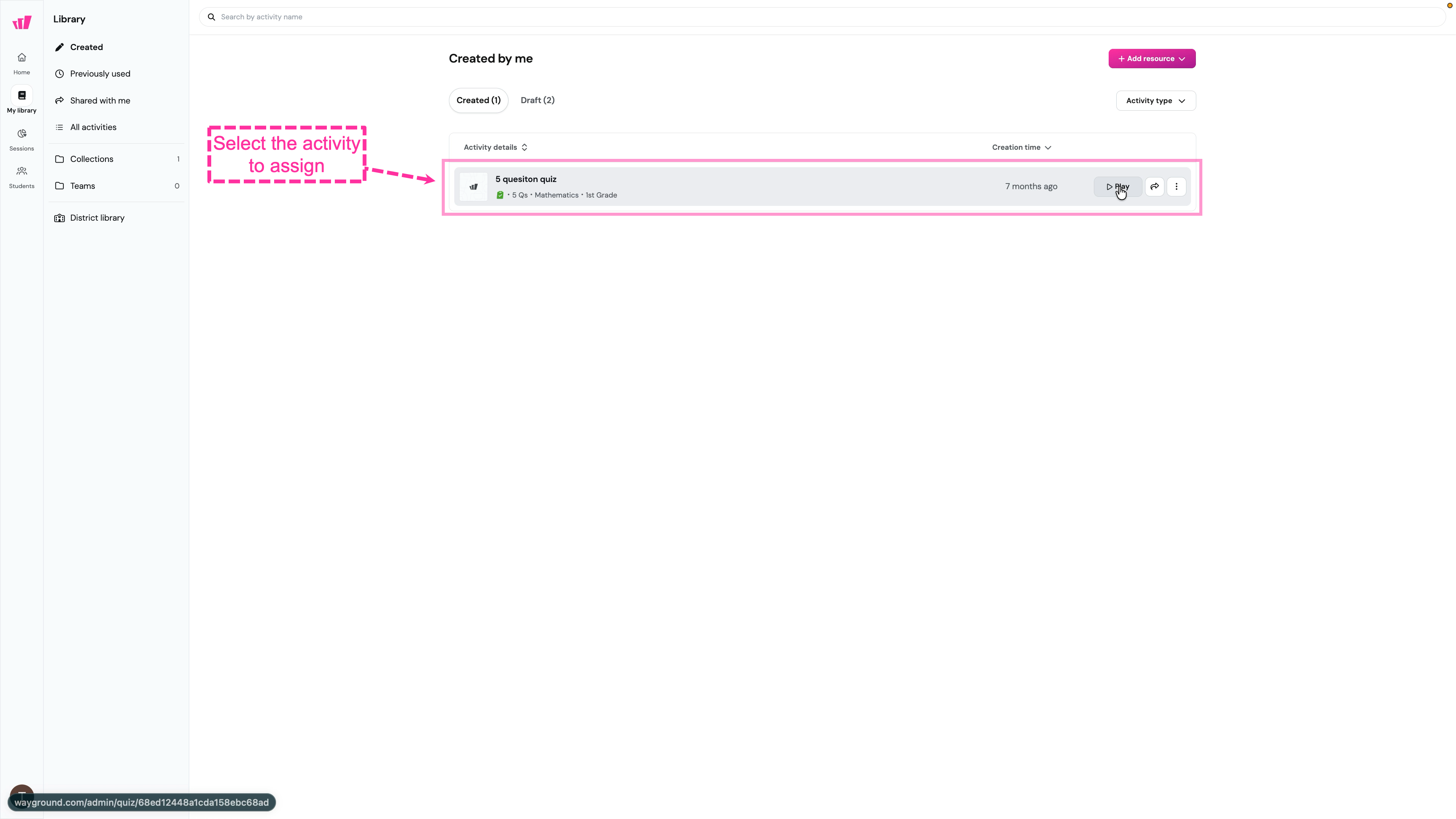
Pick the resource you want to assign from your Wayground library.
Choose the class for the assignment, then give it a name.
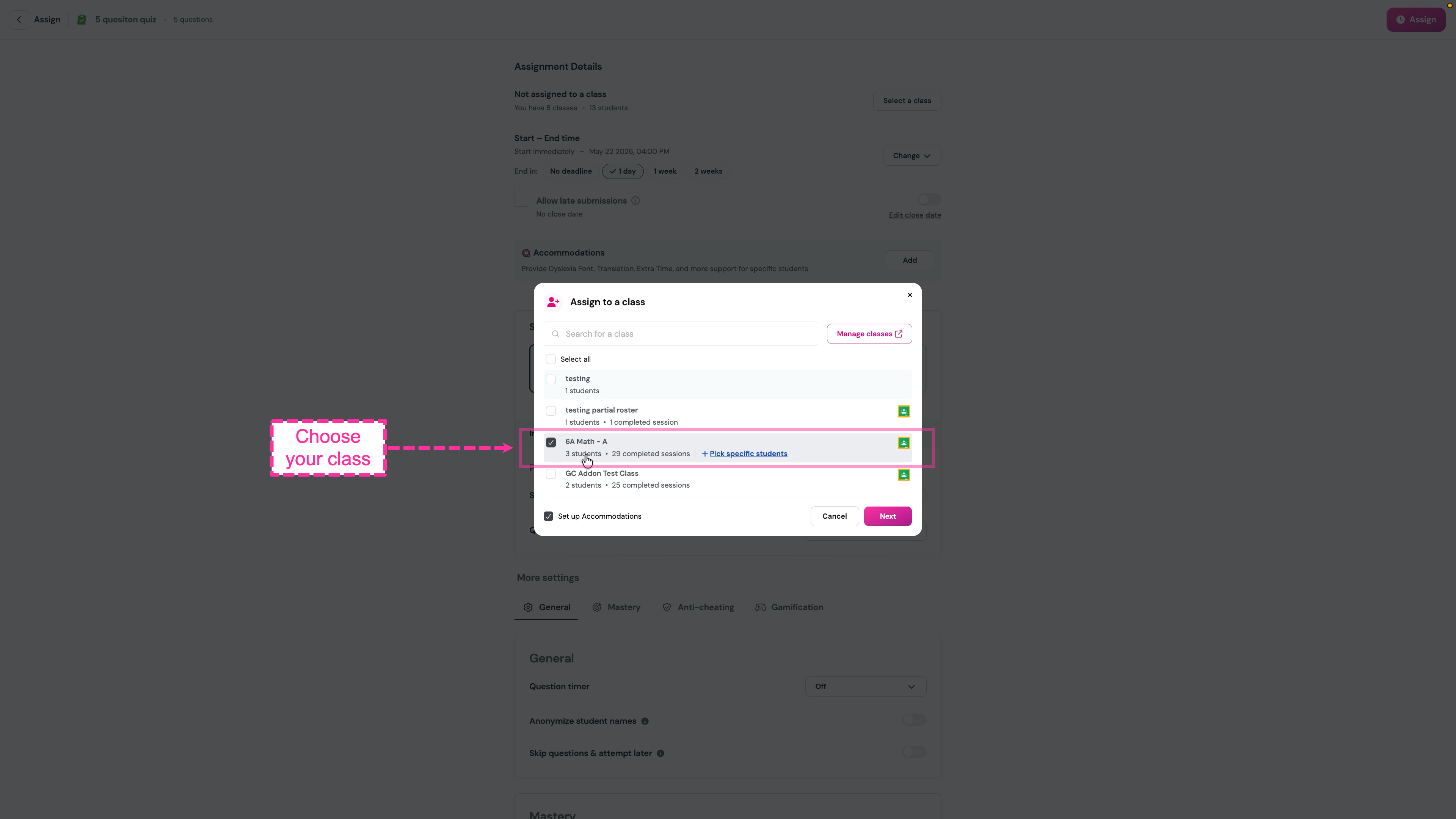
Choose the class and give the assignment a name.
Pick a mode (Practice, Accuracy, or Testing).
Adjust settings such as attempts, the question timer, and Accommodations.
Turn on Assign via add-on on Google Classroom. This posts the resource to your class. The setting appears only when the add-on is installed.
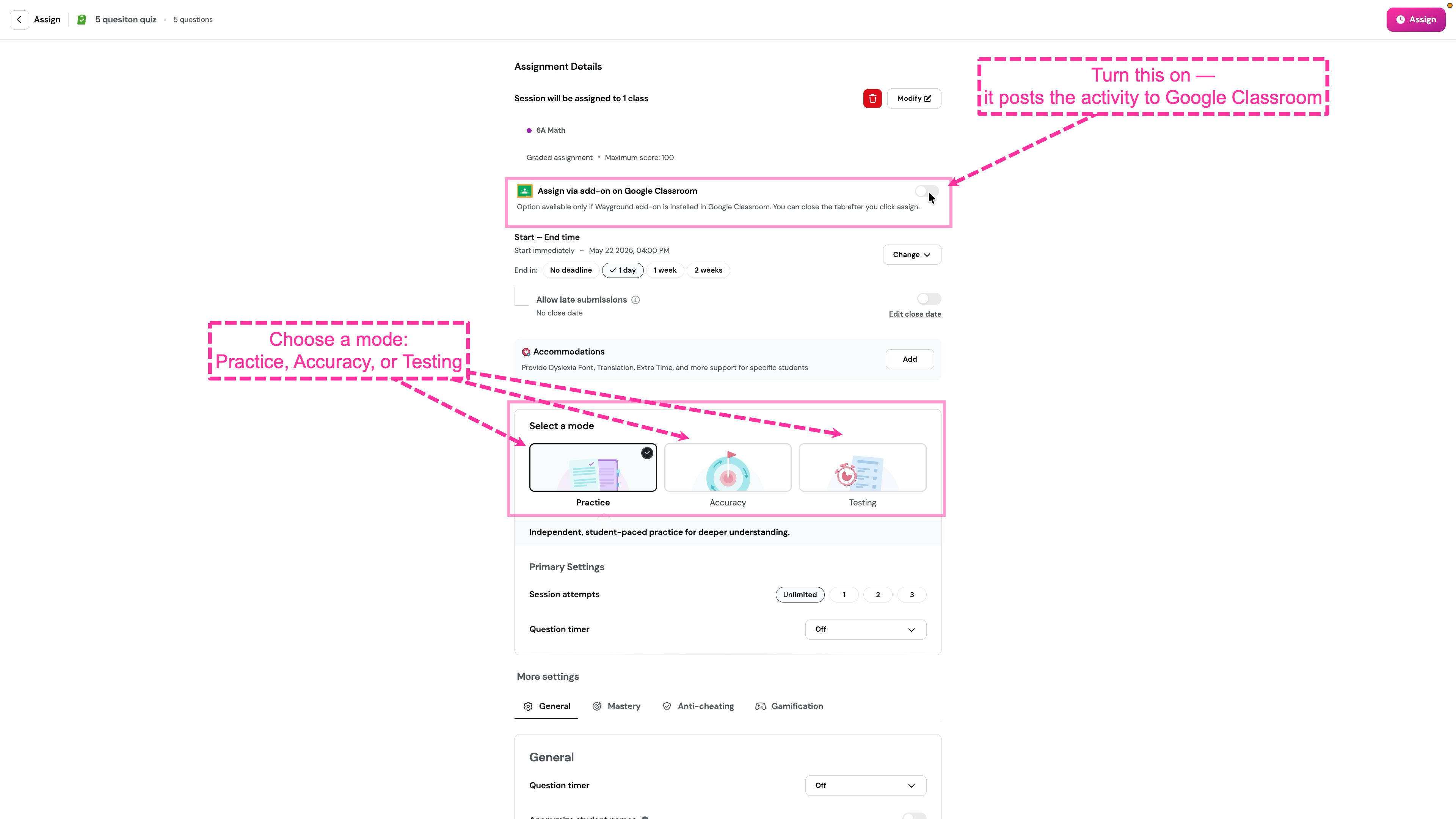
Turn on “Assign via add-on on Google Classroom,” choose a mode and settings, then select Assign.
Select Assign, then close the tab once you’re done.
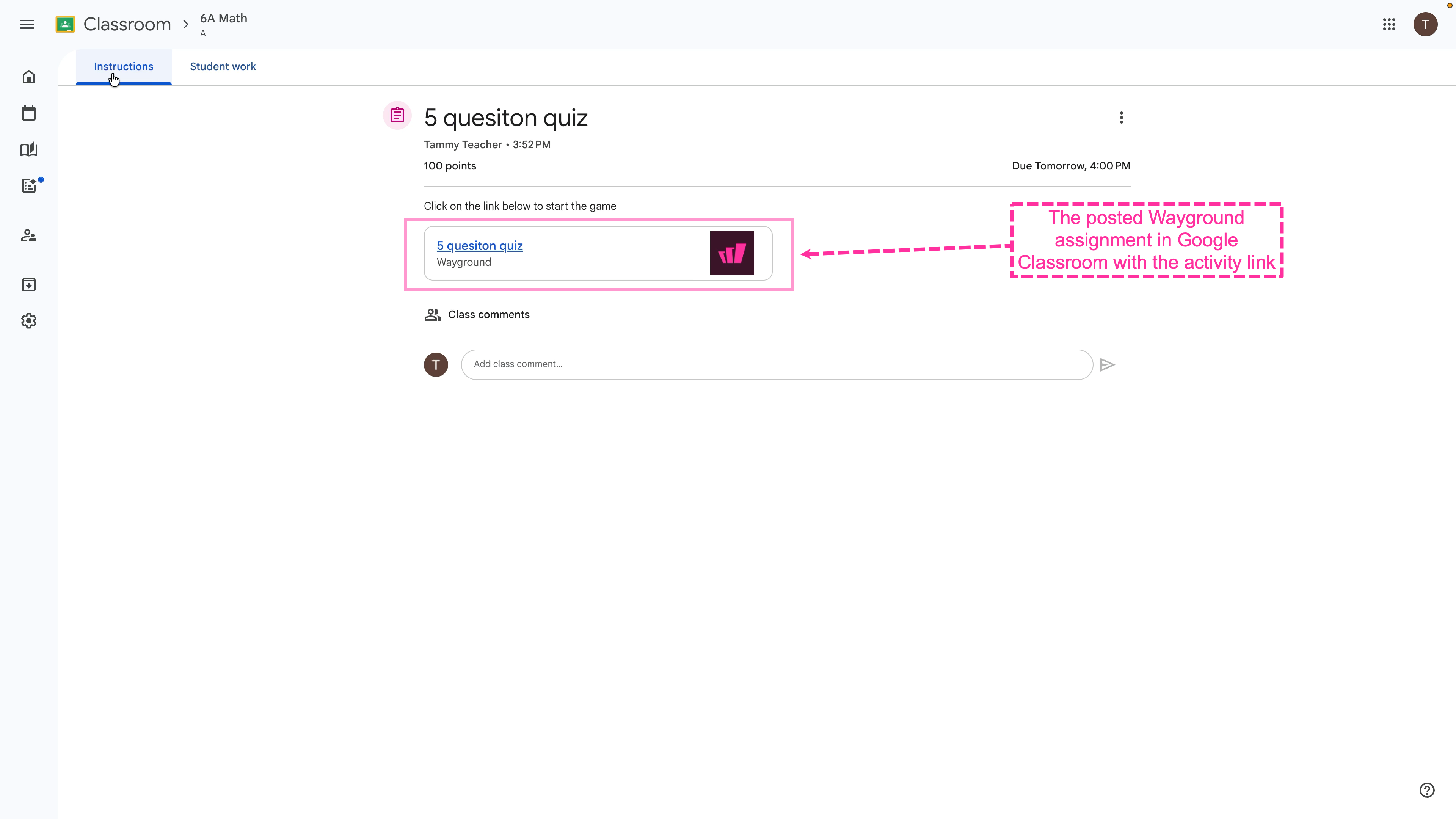
The assignment appears in your class with a Wayground link students can open directly.
Assign from within Wayground
You can also start in Wayground. Open the resource, choose Assign via add-on on Google Classroom, then select the class. The resource posts to Classroom the same way.
Student Experience
The student opens the assignment in Google Classroom.
In Your work, they select the Wayground link (or the link in the instructions).
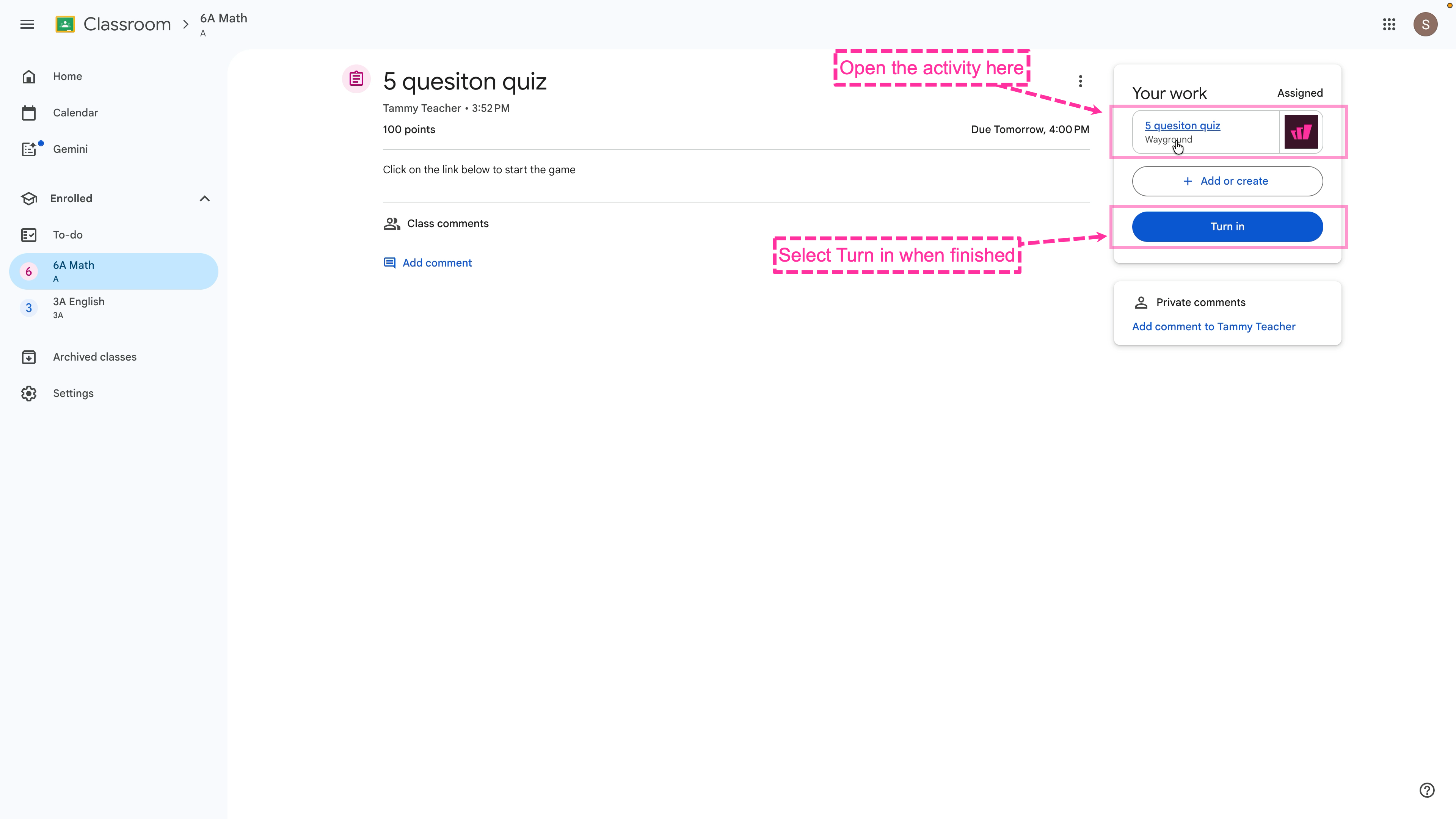
Students open the activity from the link, then select Turn in to submit.
The resource opens right away. Because students sign in through Classroom, there’s no class code or separate login.
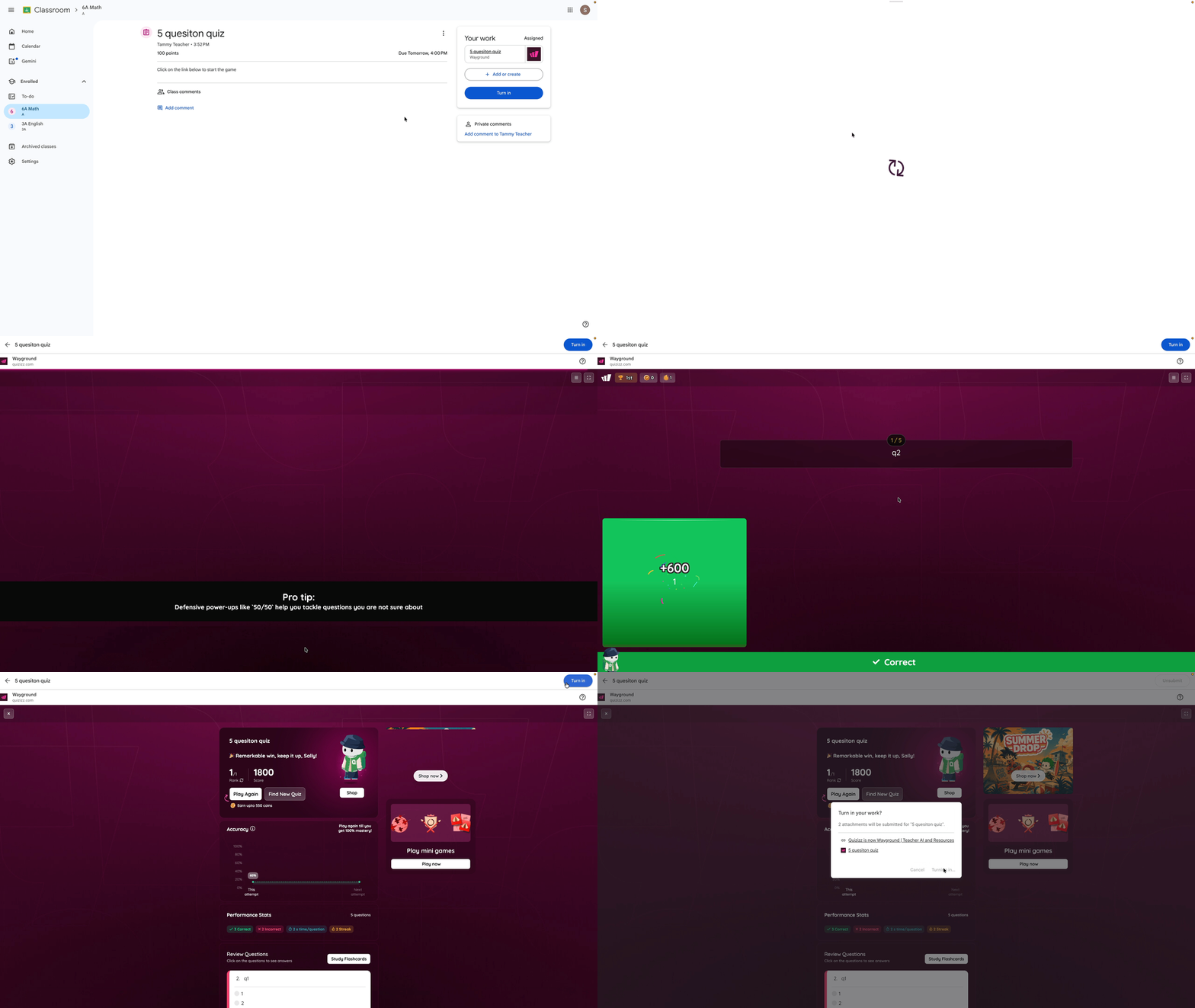
Because students sign in through Classroom, the activity opens with no class code.
They complete the resource in Wayground and see their results.
Back in Classroom, they select Turn in to submit.
Review results and grades
Open the assignment and go to the Student work tab to see each student’s status (assigned, turned in, and graded).
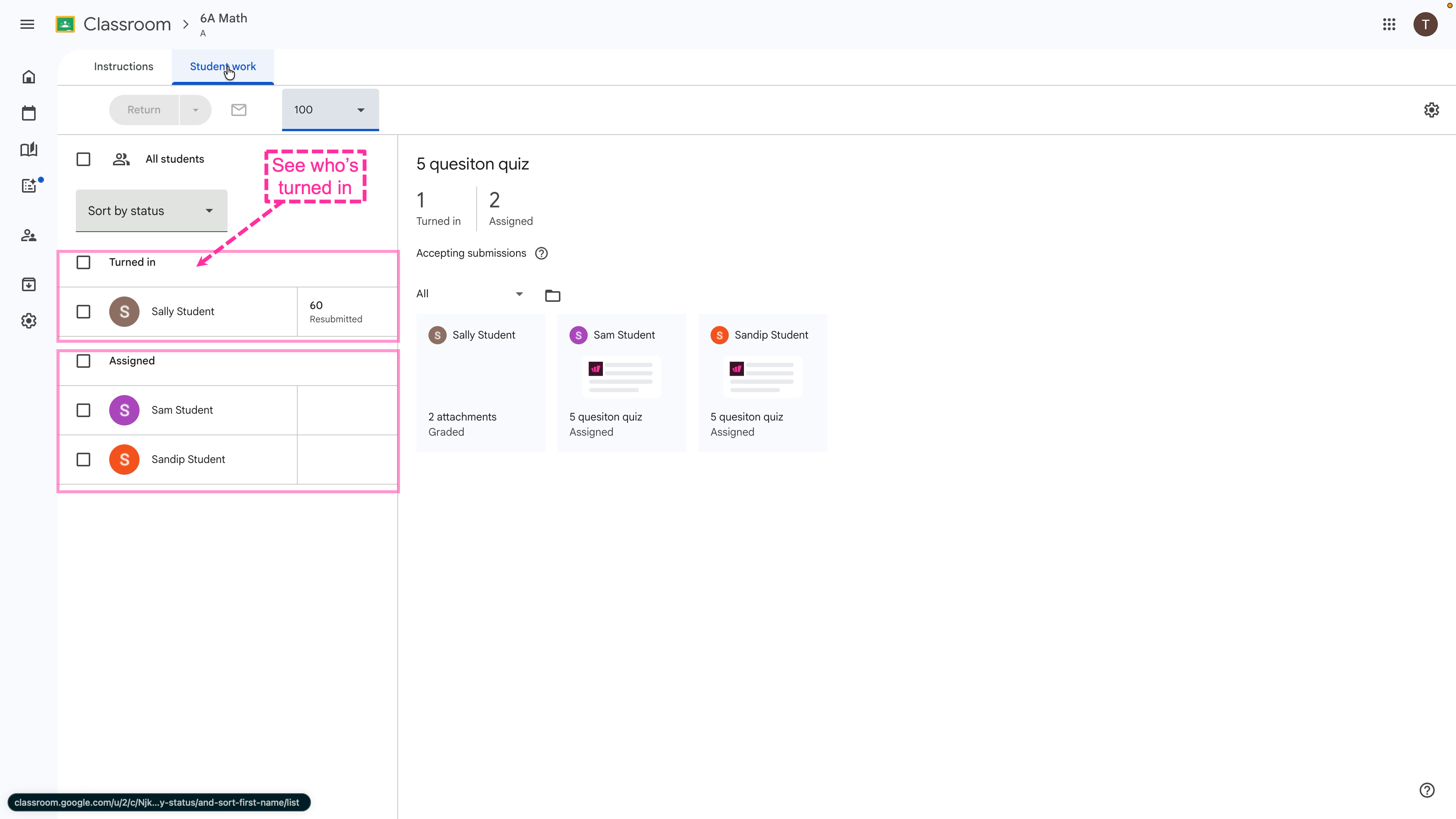
Open Student work to see each student’s status.
Open a student’s submission.
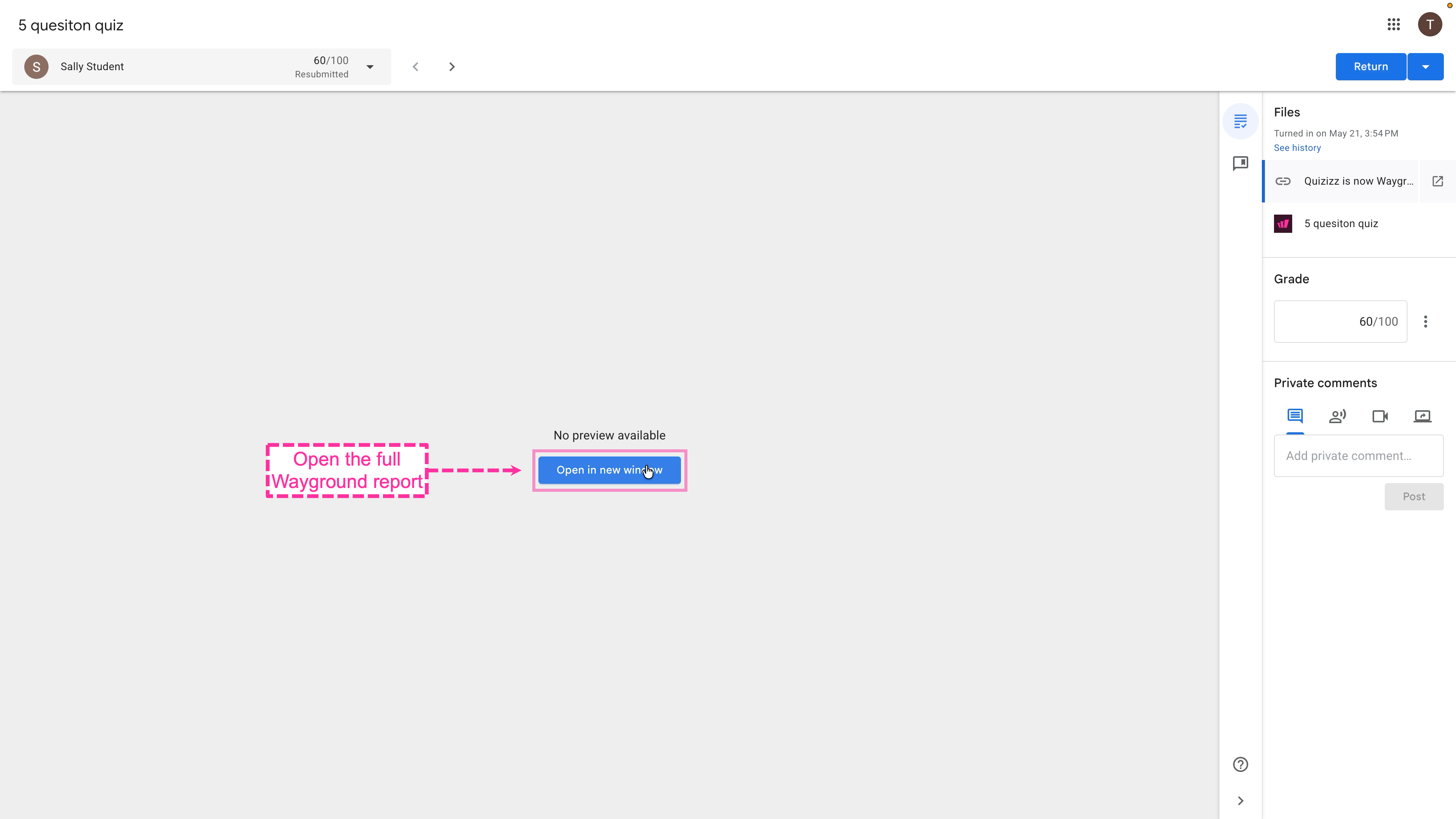
Select Open in new window to view the full Wayground report.
On the Wayground attachment, select Open in new window to see the full report.
Review the Wayground report: overall accuracy, correct and incorrect counts, time taken, and a question-by-question breakdown of each student’s responses.
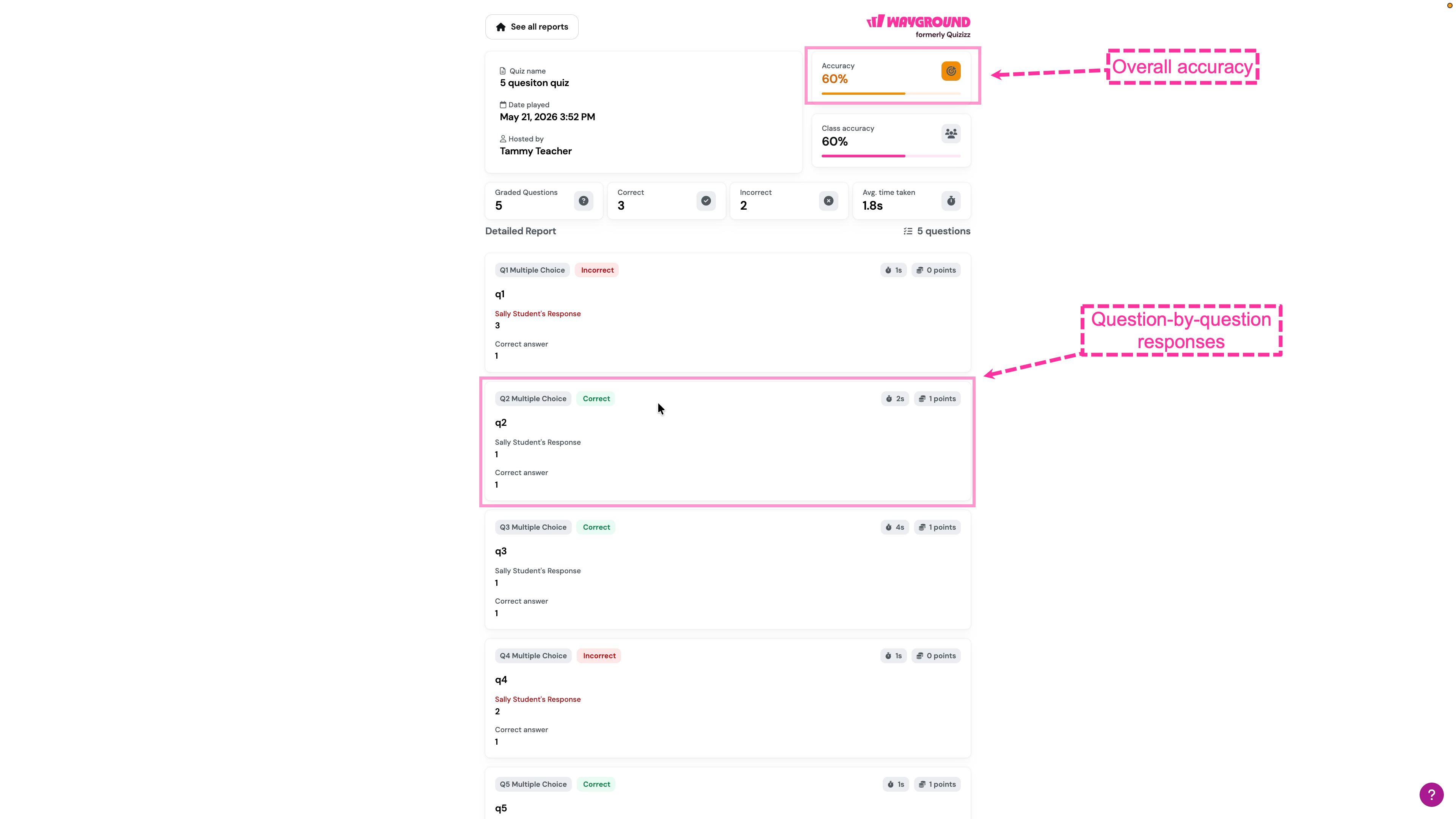
The Wayground report shows accuracy and a question-by-question breakdown.
Scores sync back to Classroom, so grades stay with the rest of your class work.
Troubleshooting and tips
Asked to sign in or confirm permissions again? It’s safe to continue. The add-on needs Google Classroom access to post the assignment and sync grades, and it may ask more than once.
Don’t see Wayground in the Add-ons panel? The add-on may not be installed for your account yet. See “Install the add-on” or ask your administrator.
The submission shows “No preview available.” That’s expected. Select Open in new window to view the Wayground report.
Students not marked as submitted? Make sure they selected Turn in after finishing the resource.
See both Wayground and Quizizz names, or both wayground.com and quizizz.com links? They all point to the same place.
Need more help?
If you get stuck, browse the rest of the Help Center or contact support. Let’s find a way.
Was this article helpful?
That’s Great!
Thank you for your feedback
Sorry! We couldn't be helpful
Thank you for your feedback
Feedback sent
We appreciate your effort and will try to fix the article