Some students need additional support to participate in assessments — whether through a scribe who enters answers on their behalf or by completing the assessment offline. This article explains how to add a student’s responses to a Common Assessment when they couldn’t take it digitally on their own.
When to Use This Feature
Use Add Student Record when a student in your class was unable to take the Common Assessment digitally on their own. Common scenarios include:
Students with accommodation: A student with a disability requires someone to input answers on their behalf, similar to how scribes are used during state testing.
Alternate format: A student completed the assessment on paper or in another non-digital format, and their responses need to be entered into Wayground.
Restricted digital access: A student (e.g., in detention) was unable to access the digital environment and recorded responses offline.
This feature ensures these students are included in your class data and in the broader school and district Common Assessment reports.
Before You Begin
Before you can add a student record, the following must be in place:
The Common Assessment creator must have enabled this feature. The setting “Allow Teachers to Add Student Records” is configured during Common Assessment creation. If you don’t see the option to add a record, the Common Assessment creator has not enabled it.
You must be assigned to the Common Assessment. Only teachers assigned the Common Assessment can add student records.
The student must be in your class. You can only add records for students who are part of your class roster.
Adding a Student Record
Follow these steps to enter responses on behalf of a student:
Open the Common Assessment from your Common Assessments page.
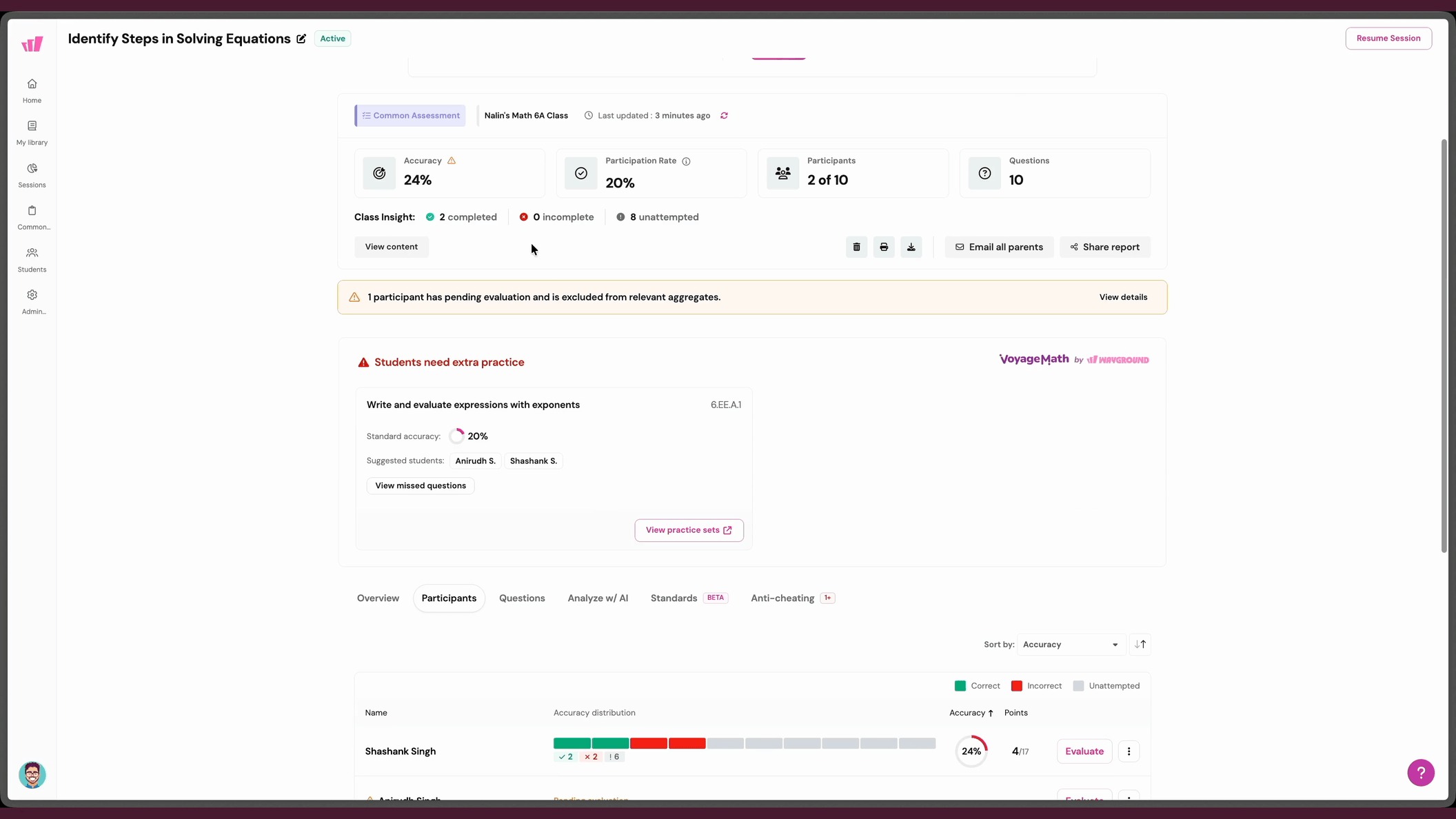
Open the assessment class report for the relevant class and go to the Participants tab.
Find the student in the list, click the three-dot menu next to their name, then select Record student response.
- In the Record response on behalf of [Student_name] panel, open the Select reason dropdown and pick one:
Student with accommodations, for when you provided an accommodation for the student.
Technical issue prevented online submission, for when a device or network problem stopped the student from submitting online.
Other, for any reason that does not fit the options above.
 Note: The reason you provide is logged and visible to administrators in the Common Assessment Admin Report. Enter an accurate and appropriate description.
- Click Continue. The student's assessment view opens with a "Recording response for [Student_name]" banner at the top.
- Click Start assessment and work through each question, entering answers on the student's behalf. You can skip questions and revisit them, the same way a student would.
- The Responses submitted successfully! confirmation appears. Click Close to return to the report.

Warning: Once submitted, the student record is final. You cannot edit the responses or repeat the process for the same student. Double-check all answers before submitting.
What Happens After Submission
After you submit the student record:
The student’s responses are included in your Class Report, just like any other student submission.
The record is included in school-level and district-level Common Assessment reports.
The record is flagged as manually added, with the reason you provided, so administrators have full visibility.
The student’s performance counts toward accuracy, performance bands, and standards analysis.
For Administrators: Reviewing Manually Added Records
If you’re a System Admin, School Admin, or Assessment Coordinator, you can see which student records were manually added by teachers:
Open the Common Assessment Admin Report for the relevant Common Assessment.
Manually added records are flagged in the report.
The reason provided by the teacher (e.g., “Accommodation” or “Detention”) is logged and visible.
This transparency ensures compliance and allows you to audit how the feature is being used across your schools.
Tips & Best Practices
Have the student’s responses ready before starting. If the student completed the assessment on paper, collect and organize their answer sheet beforehand.
Double-check every answer before submitting. The record is final and cannot be edited or re-entered.
Coordinate with your Assessment Coordinator. If you have questions about when to use this feature or what reasons to provide, check with your coordinator before proceeding.
Was this article helpful?
That’s Great!
Thank you for your feedback
Sorry! We couldn't be helpful
Thank you for your feedback
Feedback sent
We appreciate your effort and will try to fix the article